
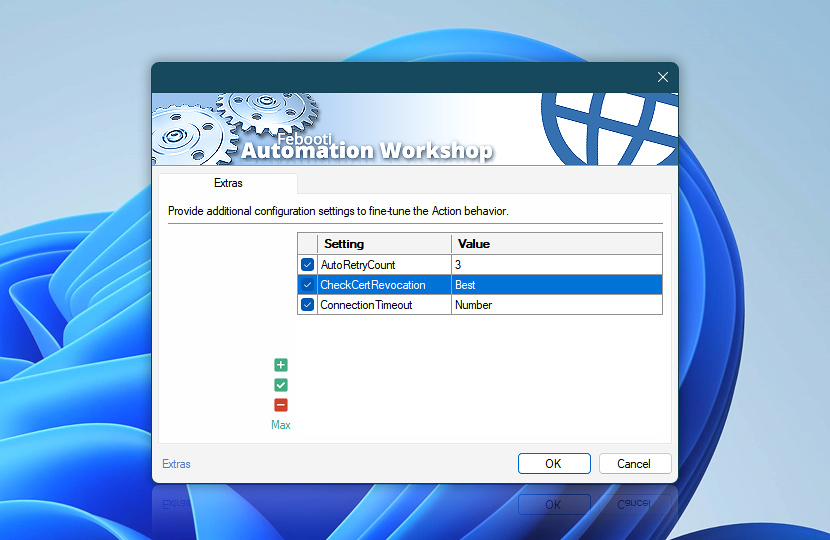
Extras provide additional Action-specific settings for Internet & Web Actions. These settings are used to fine-tune behavior that is not part of the base configuration, such as request handling, response processing, file output, compatibility, or other advanced web communication options.
Available extra settings depend on the selected Action. Some Actions may include options for filename handling, output formatting, request preparation, response processing, networking behavior, or other specialized scenarios.
Extras are optional. In most workflows, the standard Action settings are sufficient. Use extra settings when a specific website, API endpoint, server, proxy, or automation scenario requires additional control.
| Extras | Details |
|---|---|
| List of settings | Define extra settings used by the selected Internet or Web Action. Each setting controls a specific advanced behavior for the current Action, such as request handling, response processing, output handling, compatibility, or networking behavior. Extra settings are configured directly in the Action. They are not inherited from Web Profiles and do not change global Internet & Web settings. Each setting can be added, edited, removed, enabled, or disabled individually. Disabled settings remain in the list but are not applied when the Action runs. |
| Editing | Use the editing controls to manage extra settings:
Use the context menu for additional management options, such as duplicating, moving, enabling, or disabling entries, and for quick access to related editing features. |
| Min / Max | Resize the settings list between compact and expanded views to make it easier to work with multiple entries or longer values. Press F11 to toggle between view modes. |
Context menu
Use the context menu for quick access to extra setting management features:
- Manage entries—Add, Edit, or Remove extra settings (ALT+A, F2, ALT+R).
- Duplicate and copy—Duplicate, Copy, or Paste entries (CTRL+D, CTRL+C, CTRL+V).
- Reorder—Move settings up or down (ALT+Up, ALT+Down) to control the order in which they are applied.
In most cases, setting order is not important. However, some advanced options or compatibility scenarios may depend on the order in which settings are processed.
Notes
- Extra settings are configured separately for each Action instance.
- Extra settings affect only the selected Action. They do not change global Internet & Web settings or Web Profile configuration.
- Available extra settings may differ between Internet & Web Actions because each Action supports only the options that are relevant to its purpose.
Editing…
Use the editor to define or modify an extra setting. Each entry consists of a setting name and its associated value.
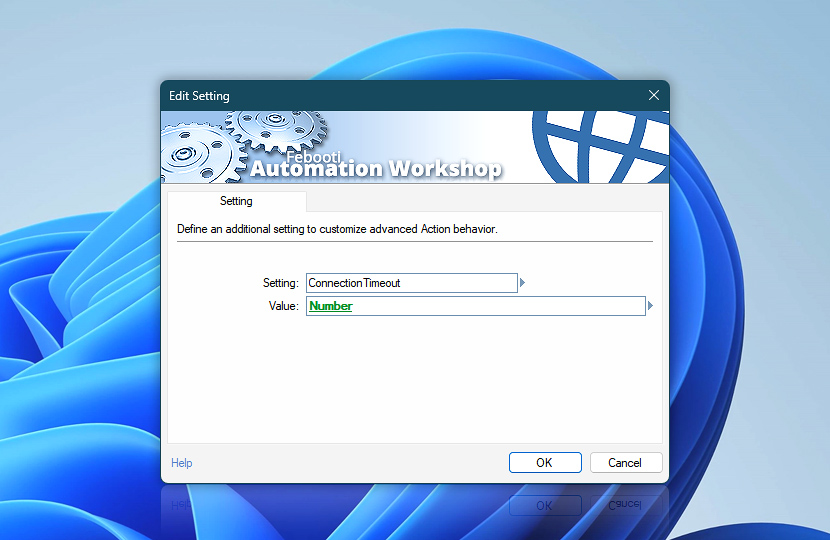
Extra settings can be entered manually or filled with dynamic data by using the Variable Wizard. This allows advanced behavior to adapt to the current Task, Trigger, file, date, response, or other runtime information.
| Extra setting | Details |
|---|---|
| Setting | Specifies the extra setting to configure for the selected Action · Details |
| Value | Specifies the value assigned to the selected extra setting. The value can be fixed text, a number, a file path, or dynamically generated content, depending on the setting · Details |
| Variable Wizard |  Use dynamic data input—substitute a parameter from a file, web, connected Trigger, other Actions, date and time presets, etc. Use dynamic data input—substitute a parameter from a file, web, connected Trigger, other Actions, date and time presets, etc. |
Extras…
The Extras pane provides optional Action-specific settings for advanced Internet & Web behavior. Automation Workshop already uses suitable defaults for normal web requests, so these settings usually do not need to be changed.
Use Extras when a particular website, API endpoint, server, proxy, or automation scenario requires additional control over transfer behavior, connection handling, automatic retries, file naming, or HTML processing.
Each setting applies only to the current Action instance. Available settings depend on the selected Internet & Web Action.
Transfer engine
These settings fine-tune how the web engine receives and processes response data, validates certificates, and writes diagnostic information.
| Setting | Description |
|---|---|
| BufferSize | Sets the receive buffer size, in bytes, used while downloading response data. Accepted values are 1024–524288 bytes. The default is 16384 bytes (16 KB). Actual data blocks received from the network may be smaller than the configured buffer size. |
| CheckCertRevocation | Controls certificate revocation checking for secure connections. Use No to skip revocation checks, Yes to perform normal revocation checking, or Best to use best-effort checking where certain non-critical revocation lookup failures do not cause the connection to fail. The default is No. |
| LogCertInfo | Adds detailed certificate information to the debug log. Use Yes to include certificate details when troubleshooting secure connections, or No for normal logging. The default is No. |
| KeepOriCompression | Controls whether compressed response content is preserved exactly as received from the server. Use Yes to keep the original compressed response body instead of automatically decoding it. Use No for normal automatic decompression. The default is No. Automation Workshop automatically decodes common HTTP content encodings, including gzip, br, and zstd. It also supports deflate in both zlib-wrapped deflate streams defined in RFC 1950 and raw deflate streams defined in RFC 1951.Keeping the original compression can be useful for advanced troubleshooting or workflows that need to store or pass through the server response unchanged. It is also useful for mirror, cache, or CDN-style workflows, where already-compressed content can be stored and served later without first decompressing and recompressing it. Because the response remains compressed, the Save Webpage Action does not inspect its contents or process referenced subresources, allowing the original response to remain unchanged. |
These options apply to all Internet & Web Actions. In most workflows, the default transfer engine behavior provides the best balance of compatibility and performance. Change these settings only when the remote server or a specific troubleshooting scenario requires it.
Connection & retries
These settings control how long Automation Workshop waits while establishing a connection and how many automatic connection retries may be attempted for recoverable failures.
| Setting | Description |
|---|---|
| ConnectionTimeout | Sets the maximum time allowed for establishing a connection to the remote server. Specify the value in milliseconds. The default is 300000 milliseconds (5 minutes). This setting applies to the connection phase rather than the total duration of the request.ConnectionTimeout is separate from the waiting timeout configured on the Action's Flow tab. ConnectionTimeout limits how long the web engine may spend establishing the connection, while Enable waiting timeout (Do not wait longer than) limits how long the Action waits for the web operation to complete. |
| AutoRetryCount | Sets the maximum number of automatic retry attempts for connection failures that Automation Workshop determines may be recoverable. This setting provides a complete per-Action override of the retry behavior configured in the selected Web Profile. It can enable retries when they are disabled in the profile, disable retries when they are enabled, or specify a different retry count. This value always takes precedence for the current Action. Use 0 to disable automatic retries, 1 for one retry, or a higher value for additional attempts. Retries remain selective and are performed only for failures that Automation Workshop considers suitable for retrying. |
These options apply to all Internet & Web Actions. Automatic retries are selective—they are used only for failures that the web engine considers suitable for retrying. Setting a higher value does not force every unsuccessful request to be repeated.
Smart Rename
Smart Rename can automatically create an alternative filename when the intended output filename cannot be used as-is, for example when avoiding an existing file.
| Setting | Description |
|---|---|
| SmartRenamePadding | Defines the padding template used for the sequence number added by Smart Rename. The value controls both the width and the surrounding characters of the generated suffix. For example:
The counter continues increasing until an available filename is found. It is not limited by the length of the padding template—for example, 00 can continue beyond (99) to (100) when necessary. The default is 0, producing suffixes such as (1), (2), (3), and so on.
|
This setting is available for Universal Web API Call, Save Webpage, and Download File from Website. Use this setting only when the default Smart Rename format does not match the filename convention required by the workflow.
HTML & assets
These settings provide additional limits for HTML and locally stored web assets.
| Setting | Description |
|---|---|
| MaxHtmlOutputSize | Sets the maximum size of HTML output processed by the Action. Specify the limit in bytes. The default is 20000000 (20 MB) bytes. Increase the value only when unusually large HTML documents must be processed. |
| MaxHtmlAssetLen | Sets the maximum length of generated filenames for locally saved HTML assets. Specify the value as a number of characters. The default is 64 characters. This can be useful when downloaded resources contain unusually long names that must be shortened for local storage.Learn how the Save Webpage Engine discovers supporting resources, stores them locally, rewrites page references, and prepares the saved copy for offline viewing. |
These settings are available only for Save Webpage. The default limits are suitable for typical webpages. Adjust them only when processing unusually large HTML documents or resources whose generated local filenames require a different length limit.
Applies to…
The extra settings applies to the following Internet & Web Actions:
- Get Webpage Content · Overview · Extras
- Upload File to Website · Overview · Extras
- Download File from Website · Overview · Extras
- Save Webpage · Overview · Extras
- Submit Web Form · Overview · Extras
- Universal Web API Call · Overview · Extras
We are here to help…
If you have any questions, please do not hesitate to contact our support team.