
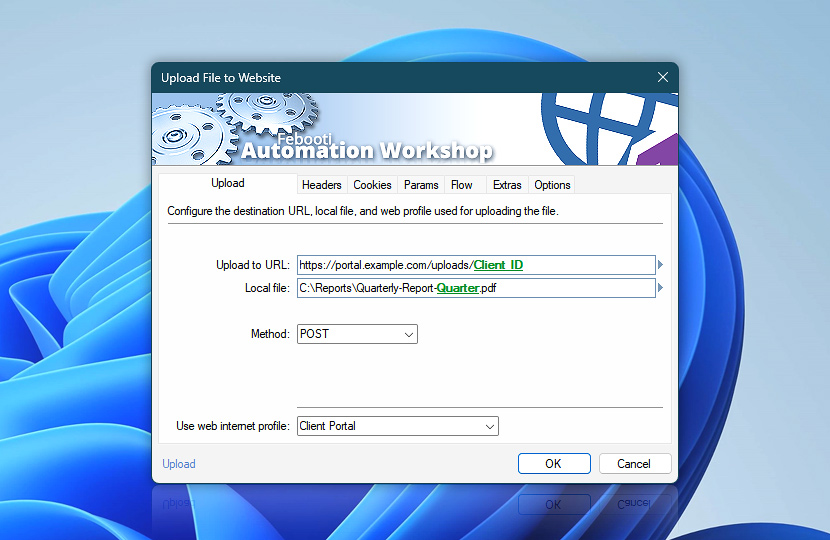
Upload File to Website sends a local file directly as the request body to a website, API endpoint, or online service. Its upload settings define the destination address, the file to send, and the Internet & Web Profile used to make the connection.
Unlike the Submit Web Form Action, Upload File to Website sends the file directly to the specified web address or service. To fill out and submit a web form—including forms with file attachments—use Submit Web Form instead.
Specify a fixed upload URL, an API endpoint, or a dynamically built address that includes variables from files, Triggers, previous Actions, dates, times, or other workflow data. The upload response can then be used by later Actions through Variable Wizard.
| Upload | Details |
|---|---|
| Upload to URL | Enter the webpage URL or API endpoint where the file will be uploaded. The address can point to a public website, an internal web application, a REST API, a local service, or any other HTTP or HTTPS resource. Use this field to send files to object-storage services, upload endpoints, document portals, cloud services, internal systems, or automated processing tools. The URL may include variables when the destination depends on dates, file names, customer records, identifiers, or previous workflow results. Examples:
|
| Local file | Specify the local or network file that will be uploaded. The file path can be fixed, selected with Browse, or dynamically built with variables when the file name, folder, extension, or location changes during the workflow. Use this field to upload reports, exports, invoices, images, documents, archives, logs, backups, or any other file created, updated, or selected by earlier workflow steps. |
| Method | Choose the HTTP request method used to upload the file. The target server determines which methods are accepted and how each request is processed:
|
| Use web internet profile | The Internet & Web Profiles Manager provides centralized management for reusable web connection settings. Each profile can include connection, authentication, security, header, cookie, parameter, cache, and limit settings that can be shared across multiple Actions. Choose an existing profile from the list of available profiles, or create a dedicated profile when this request needs its own credentials, TLS behavior, redirects, proxy settings, DNS options, cookies, throttling, or connection limits. For Upload File to Website, the selected profile controls how Automation Workshop connects to the upload destination before sending the file. Use it to keep authentication, cookies, shared headers, security rules, connection reuse, throttling, and request limits consistent across repeated file upload tasks. |
| Browse |  Use Browse to select a particular file or folder on a local disk, network share, or LAN location. Use Browse to select a particular file or folder on a local disk, network share, or LAN location. |
| Variable Wizard |  Use dynamic data input—substitute a parameter from a file, web, connected Trigger, other Actions, date and time presets, etc. Use dynamic data input—substitute a parameter from a file, web, connected Trigger, other Actions, date and time presets, etc. |
Interconnect
- Upload File to Website integration and auditing—Variables (dynamic data) and Events (recorded activity). Retrieve the upload response returned by the server, along with the status code, response headers, final URL, and timing information.
Notes
- To upload multiple files in a single request, use the Submit Web Form Action, which supports multipart form submissions with multiple file fields.
- If the destination website accepts file uploads through an HTML form, use the Submit Web Form Action. It is specifically designed for form-based uploads and provides direct control over form fields, files, and multipart submission behavior.
Uploading compatibility…
Upload File to Website Action is designed for services that accept the file itself as the HTTP request body—often called a raw body upload, direct binary upload, or octet-stream upload. Unlike multipart form submissions, the file bytes are sent directly to the destination endpoint without being wrapped in form fields.
This upload model is supported by many cloud storage platforms, REST APIs, content management systems, and file services. The exact request method, authentication, headers, and query parameters depend on the destination service and can be configured using the Action together with an Internet & Web Profile templates.
Amazon S3
Amazon S3 supports direct object uploads using PUT, where the file bytes form the request body. Authentication can be provided through AWS Signature Version 4 headers or by uploading to a presigned URL.
Google Cloud Storage
Google Cloud Storage supports direct binary uploads using its simple media upload flow with POST. Resumable uploads can also transfer file data with PUT after a resumable upload session has been created.
Google Drive
Google Drive supports direct media uploads using POST, and existing file content can be updated through supported upload endpoints. With uploadType=media, the request body contains the file data itself while metadata is handled separately.
Azure Blob Storage
Azure Blob Storage accepts direct file content using PUT. When creating a block blob, the request typically includes the required x-ms-blob-type: BlockBlob header together with the appropriate Azure authentication headers.
OneDrive & Microsoft Graph
Microsoft Graph supports direct uploads to OneDrive using PUT requests to a file content endpoint. This approach is suitable for files within the size limits of the simple upload API, while larger files typically require an upload session.
GitHub release assets
GitHub accepts release assets using POST, with the raw file bytes sent directly to the dedicated uploads endpoint. The asset name and other parameters are supplied separately from the request body.
Dropbox
The Dropbox API accepts file bytes directly in the body of a POST request. Upload parameters such as the destination path are supplied through the Dropbox-API-Arg header rather than multipart form fields.
WordPress REST API
The WordPress REST API can accept media files through POST requests containing the file bytes directly. Typical requests also provide Content-Disposition with the filename and an appropriate Content-Type header.
…choosing right method
These examples illustrate common services that support direct request-body uploads, but individual endpoints may impose additional authentication, headers, content types, size limits, or workflow requirements. Refer to the destination service documentation when configuring the exact request.
When a service expects multipart form data, multiple files, or additional form fields alongside the file, use the Submit Web Form Action instead.
Still have a question?
If you have any questions, please do not hesitate to contact our support team.