
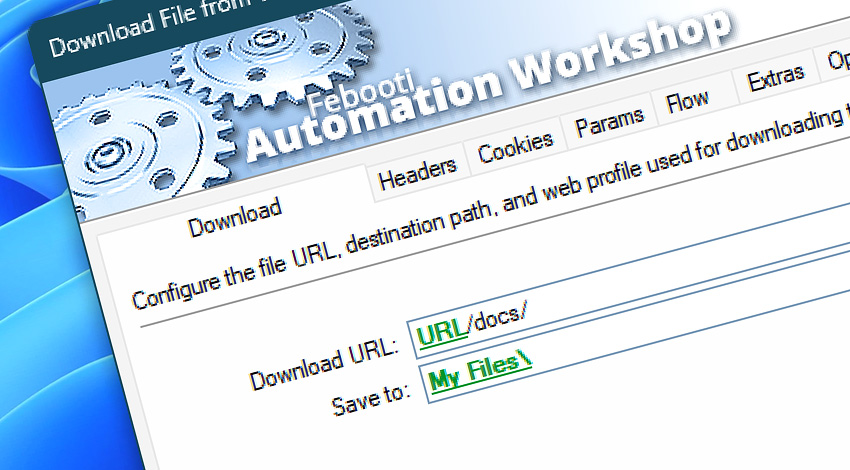
Automation Workshop includes the Download File from Website Action for downloading files from websites, web services, and API endpoints. It provides a reliable way to retrieve documents, images, archives, reports, exports, backups, installers, and other remote files as part of an automated workflow.
Use Download File from Website Action to collect files from online systems, REST APIs, cloud platforms, internal applications, and protected web resources. Download behavior can be customized with request headers, cookies, query parameters, authentication, flow control, file handling options, and Internet & Web Profiles.
Features & highlights
- Fetch remote files reliably with advanced control of request headers, cookies, parameters, and security settings, plus configurable limits for bandwidth, connections, and response size via Internet & Web Profiles.
- Download files from websites, online services, REST APIs, cloud platforms, and custom server endpoints.
- Save retrieved content directly to local or network folders for later processing by the workflow.
- Use authentication, redirects, TLS settings, timeouts, retries, bandwidth throttling, and connection limits for controlled file retrieval.
- Read download results, response codes, headers, file size, final URL, and returned server details for validation and workflow decisions.
Usage examples
- Download reports, invoices, exports, logs, documents, images, archives, or backup files from online systems.
- Retrieve generated files from REST APIs, cloud services, internal dashboards, or partner web portals.
- Collect protected files from services that require headers, cookies, tokens, credentials, or query parameters.
- Validate download success by checking response codes, headers, file size, final URL, or workflow variables.
- Automate scheduled file pickup from websites and APIs without manual browser downloads.
Documentation
- Download · Enter the remote file URL or API endpoint and choose where the downloaded file is saved.
- Headers · Add custom request headers for download requirements, content negotiation, authentication support, caching, user agent, and other request details.
- Cookies · Provide cookies used for sessions, preferences, authentication, or server-side state during the download request.
- Params · Add query parameters to the download request URL without manually editing the full address.
- Flow · Configure response waiting, timeout behavior, response code handling, and workflow continuation rules after the download request.
- Extras · Fine-tune optional download details, including highly specific request, response, transfer, file, and processing behavior.
- Options · Access the full Action configuration, including state, display name, error handling, logging behavior, and other advanced options.
Interconnect
- Download File from Website integration—with Variables (manipulate data dynamically within a workflow) and Events (recorded entries that detail system activity).
- Streamline your automation processes by visually connecting your workflow using Variable Wizard—a powerful tool to access all 1,000+ variables—system, network, Triggers, Actions, globals, web, and much more…
Quick access
To streamline your workflow creation, you can locate the Download File from Website Action throughout Automation Workshop's search tools—including the knowledge base, menu, and Add Action feature—using quick shortcuts like «DFW» or «DF».
Discover
Automation Workshop includes many additional Triggers and numerous Actions to help automate repetitive computer or business tasks using state-of-the-art GUI tools.
Still have a question?
If you have any questions, please do not hesitate to contact our support team.