
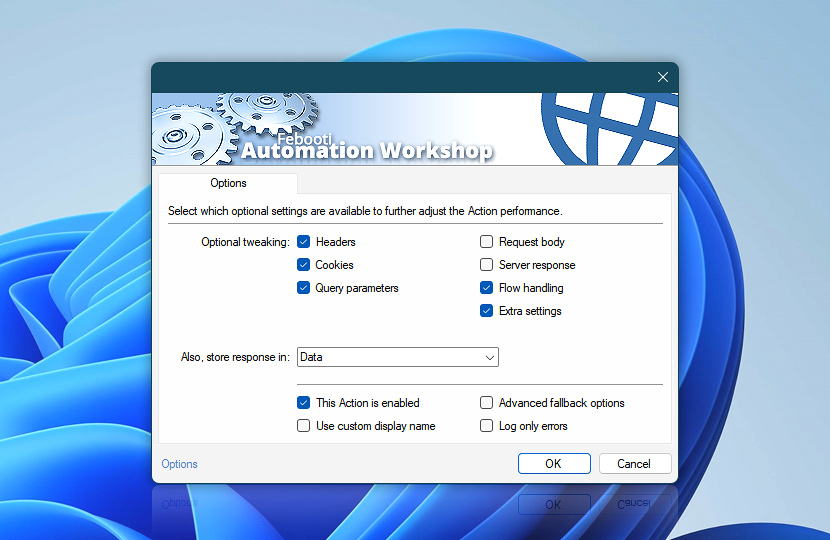
The Options settings are shared across Internet and Web Actions. They control which optional configuration panes are visible, where response data can be stored, whether the Action is enabled, and how fallback or logging behavior is applied.
Hiding an optional pane does not remove its configured values. Settings remain part of the Action and can be shown again at any time.
Some options are available in all Internet and Web Actions, while others appear only when the selected Action supports a specific feature, such as request body configuration, server response processing, file handling, or overwrite behavior.
| Optional tweaking | Details |
|---|---|
| Headers | Shows or hides the Headers pane. Use this pane to add custom request headers, override selected header values, or provide additional metadata required by web services and APIs. |
| Cookies | Shows or hides the Cookies pane. Use this pane to send custom cookies, control cookie handling, or provide cookie values required by websites, sessions, or API endpoints. |
| Query parameters | Shows or hides the Query parameters pane. Use this pane to add URL query parameters as separate name and value pairs instead of typing them directly into the request URL. |
| Request body | Shows or hides the Request body pane. Use this pane to configure the data sent with the request, such as text, JSON, XML, form content, or file-based body data. Request body settings are available only for Actions that can send request body content, such as Universal Web API Call. |
| Server response | Shows or hides the Server response pane. Use this pane to configure how returned response data is handled by the Action when special response processing options are available. All Internet and Web Actions can access returned response data through Variable Wizard. The Server response pane is used only by Actions that provide additional response handling settings, such as Universal Web API Call. |
| Flow handling | Shows or hides the Flow handling pane. Use this pane to control how the Action continues after the request, including response waiting behavior, timeout handling, and response code processing. |
| Extra settings | Shows or hides the Extra settings pane. Use this pane for additional Action-specific options that fine-tune behavior beyond the main request settings. |
Optional tweaking settings affect only the visual layout of the Action configuration window. They help keep simple requests compact while allowing advanced request, response, flow, and extra settings to be shown when needed.
Also, store response in…
Choose an existing variable to save returned response data for later use. This is useful when the response body, downloaded content, HTML, text, JSON, or API result needs to be reused by later Actions in the workflow.
Response data is already available through Variable Wizard, so storing it in a variable is optional. Use this setting when the workflow needs a named variable that can be passed to other Actions, reused multiple times, or processed later in the Task.
To create an empty variable for storing the response, use the Set Variable Action.
If file already exists…
Choose what happens when an Action saves content to a destination file that already exists. This helps prevent accidental overwrites and defines how duplicate filenames are handled.
Depending on the selected Action, the existing file can be replaced, the save operation can be skipped, or the new file can be saved with an automatically generated unique name. Use this setting when downloading files, saving webpages, or writing response data to disk.
- Smart rename · Saves the new file with an automatically generated unique filename. Use extra settings to fine-tune smart renaming behavior, such as filename padding, separator characters, and other naming options.
- Overwrite · Replaces the existing file with the new file. Use this when the latest saved content should always replace earlier output, such as recurring downloads, refreshed reports, or scheduled exports.
- Do nothing · Skips saving the file when a file with the same name already exists. The Action can still perform the web request and retrieve the server response, but the downloaded or generated file is not written over the existing file.
This option is available only for Actions that create or save files, such as Download File from Website, Save Webpage, and Universal Web API Call.
Applies to…
Options for showing or hiding additional settings are available in all Internet and Web Actions. Individual options may vary depending on the selected Action and the features it supports.
- Get Webpage Content · Overview · Options
- Upload File to Website · Overview · Options
- Download File from Website · Overview · Options
- Save Webpage · Overview · Options
- Submit Web Form · Overview · Options
- Universal Web API Call · Overview · Options
Quick reminder
- Hiding an optional pane does not remove its configured values. The settings remain part of the Action and can be shown again when needed.
- Some options are Action-specific and appear only when the selected Action supports the related feature.
Questions?
If you have any questions, please do not hesitate to contact our support team.