
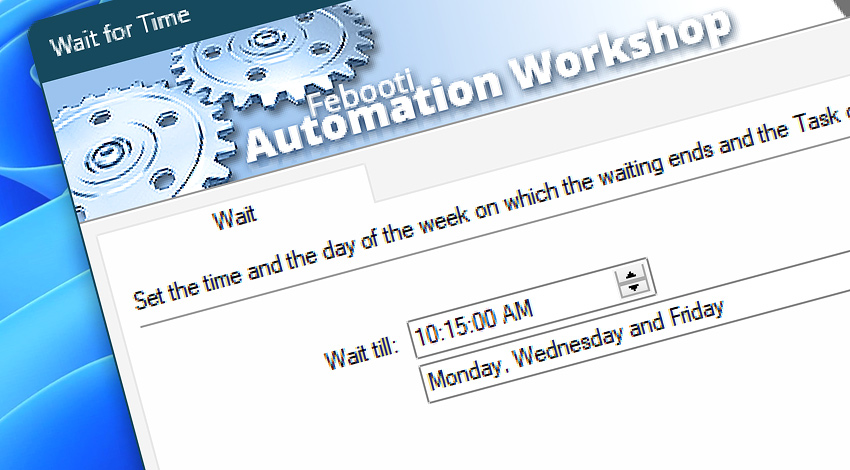
Automation Workshop includes the Wait for Time Action that pauses the Task until the specified time is reached—any set of weekdays and exact time (hours, minutes, and seconds).
Usage examples
- Pause a workflow until a specific time and day of the week.
- Instruct Automation Workshop to wait until the specified time before proceeding with a workflow.
- Suspend the execution of the Actions, and continue only on a specified weekday.
- Tells the Task to wait for time to pass before continuing with further Actions.
Documentation
- Wait · Set the time and day of the week on which the Task execution is resumed.
Interconnect
- Wait for Time integration—with Variables (manipulate data dynamically within a workflow) and Events (recorded entries that detail system activity).
- Streamline your automation processes by visually connecting your workflow using Variable Wizard—a powerful tool to access all 1,000+ variables—system, network, Triggers, Actions, globals, web, and much more…
Quick access
To streamline your workflow creation, you can locate the Wait for Time Action throughout Automation Workshop's search tools—including the knowledge base, menu, and Add Action feature—using quick shortcuts like «WT» or «WFT».
Delay options…
Automation Workshop includes options to pause a workflow and conditionally wait for different resource types. These waiting Actions operate similarly—they pause the workflow until a particular resource reaches a desired state, such as when a file appears or disappears.
- Wait · Overview
- Wait for Remote File · Overview
- Wait for Remote Directory · Overview
- Wait for File · Overview
- Wait for Folder · Overview
- Wait for Service · Overview
- Wait for App · Overview
Discover
Automation Workshop includes many additional Triggers and numerous Actions to help automate repetitive computer or business tasks using state-of-the-art GUI tools.
Help at your fingertips…
If you have any questions, please do not hesitate to contact our support team.