
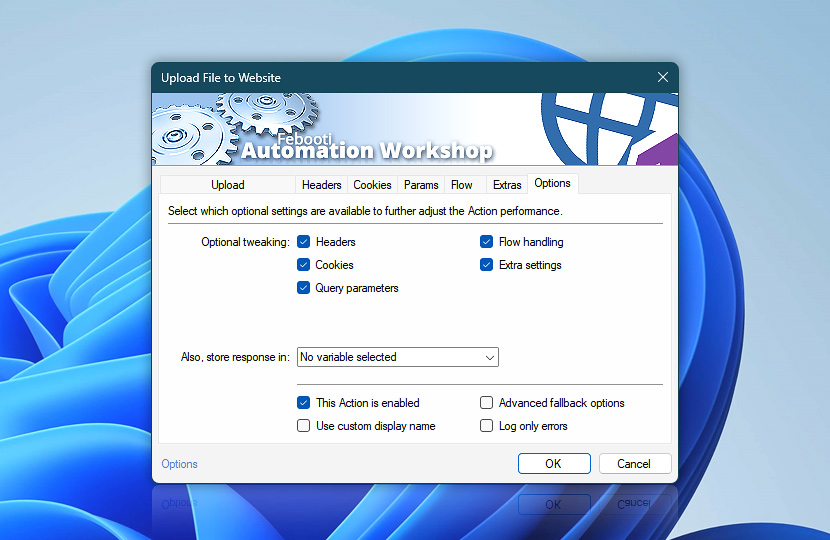
Choose which optional settings are visible while configuring the Upload File to Website Action. Keep the setup focused for simple file uploads, or show additional tabs when headers, cookies, query parameters, flow handling, or extra settings need adjustment.
Visibility options affect only the Action visual layout. Configured values remain available to the Task even when their settings are hidden.
| Options | Details |
|---|---|
| Optional tweaking | The Upload File to Website Action can show or hide optional panes—headers, cookies, query parameters, flow handling, and extra settings. Use this to keep upload settings compact while preserving any hidden configuration for Task execution. |
| Also, store result in | The result of the upload operation is already accessible via the Variable Wizard. Optionally, choose an existing variable to store the result. To create an empty variable, use the Set Variable Action. Use this option when the upload confirmation, status message, server reply, or returned data needs to be reused by later Actions through the Variable Wizard. |
| This Action is enabled | An Action is executed only if it is enabled. Otherwise, it will be automatically skipped (completely ignored) from the Task flow. |
| Use custom display name | Rename this Action, to make a human-readable workflow that will help you to find, read, and make sense of the Task structure later. |
| Advanced fallback options | Manage the advanced fallback options—select which error types will lead to automatic execution of predefined workaround operations. |
| Log only errors | Do not log information and warning messages for this Action. It may be useful to keep the log file small and tidy on production systems. |
Still have a question?
If you have any questions, please do not hesitate to contact our support team.