
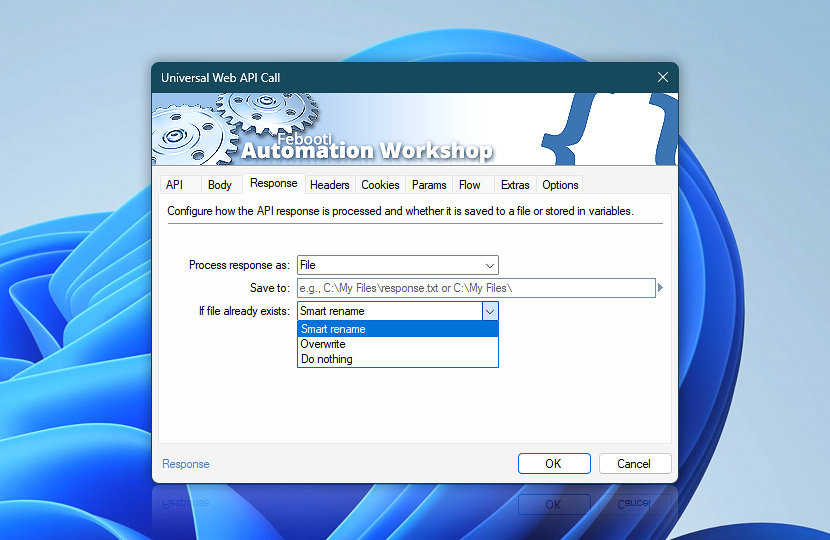
Configure how the API response is processed after the server returns data.
The Universal Web API Call Action can keep the response body in memory for use through Variable Wizard, or save the response body directly to a file. Choose the mode that best matches the type of API result returned by the server.
| Response | Details |
|---|---|
| Process response as | Choose how the returned API response is processed.
|
| Save to | Choose where the response file is saved when Process response as is set to File. The destination can be a folder or a complete file path. When a folder is selected, Automation Workshop determines the filename from the server response, URL, content type, or internal filename handling rules. When a complete file path is provided, the response is saved using that path. |
| If file already exists | Choose what happens when the destination file already exists. The Universal Web API Call Action can automatically rename the new file, overwrite the existing file, or do nothing.
Use this option to control how API-generated files, reports, exports, and downloads are handled and to avoid unintentionally replacing existing files. |
| Browse |  Use Browse to select a particular file or folder on a local disk, network share, or LAN location. Use Browse to select a particular file or folder on a local disk, network share, or LAN location. |
| Variable Wizard |  Use dynamic data input—substitute a parameter from a file, web, connected Trigger, other Actions, date and time presets, etc. Use dynamic data input—substitute a parameter from a file, web, connected Trigger, other Actions, date and time presets, etc. |
Response as variable…
Use Response as variable when the returned API data needs to remain available inside the Task. This is the best choice for JSON, XML, HTML, plain text, status messages, generated IDs, tokens, error details, or other response bodies that later Actions need to read, parse, compare, or reuse.
In this mode, the Response variable contains the response body returned by the server. The data can be accessed through Variable Wizard and passed to other Actions, stored in a named variable, written to a file later, or used as part of a condition or workflow decision.
Response as file…
Use Response as file when the returned API data should be written directly to disk. This is useful for downloaded reports, generated exports, PDF files, images, archives, installers, logs, backups, or any other API result that should become a saved file.
In this mode, the Response variable contains the final saved file path, not the response body itself. The final path reflects the result after redirects, filename detection, automatic extension handling, smart rename, overwrite rules, or other file processing options have been applied.
Saving the response directly to a file is especially useful for large responses, including multi-gigabyte files and potentially much larger downloads, as Automation Workshop can write the received data to disk without keeping the entire response body in memory. This makes file mode suitable for large downloads and other data-intensive API operations while keeping memory usage low.
Questions?
If you have any questions, please do not hesitate to contact our support team.