
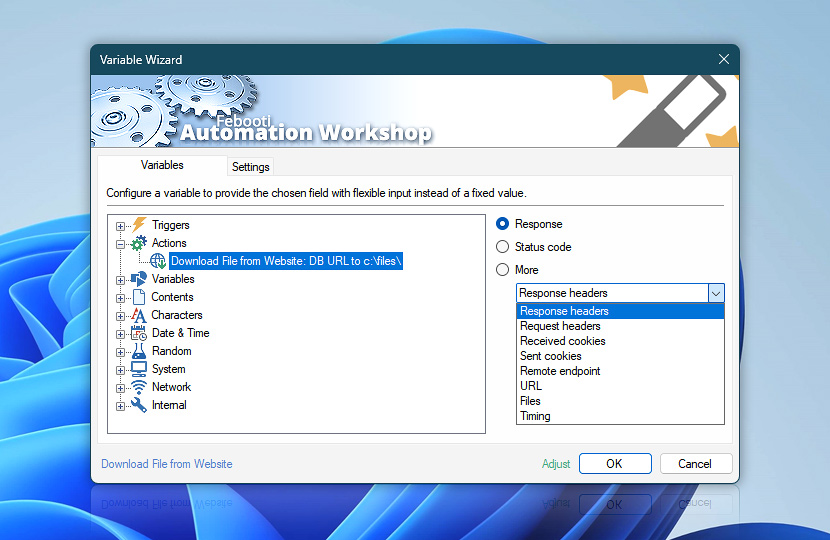
The Download File from Website Action retrieves files from websites, APIs, cloud services, or remote systems and stores them locally for further workflow processing. Use these variables to inspect download results, validate transfer success, access saved file locations, or pass returned values to subsequent Actions.
Variable Wizard provides quick access to downloaded file details, HTTP status codes, headers, cookies, remote address information, and request timing data. Request and response headers can use predefined presets or reference custom header names depending on the communication requirements of the target website or API.
| Variable | Details |
|---|---|
| Response | Contains the final downloaded file path after the download request is completed. Use this value to process, move, archive, compare, open, or pass the downloaded file to later Actions in the workflow.
Examples:
|
| Status code | Returns the status code received after the Download File from Website Action request is processed. Use this value for simple comparisons in Compare Action. Quickly detect successful downloads, redirects, missing files, or authorization failures. Examples:
|
| More… | Additional variables provide extended request and response details for the Download File from Website Action. Use them to validate download communication, analyze metadata, monitor redirects, and troubleshoot transfer issues.
Use these values to troubleshoot downloads, validate server responses, analyze transfer metadata, and build advanced automated file retrieval workflows. |
| Adjust* | Streamline creation of Task workflows even further—instantly make quick variable adjustments such as in-place text replacement (all, first, or last), ensuring (starts, ends, or does not), trimming (whitespaces, quotes, etc.), or changing capitalization. Chain multiple adjustments. Optionally, set a different display name. |
Automatic list processing…
The Download File from Website variables returned as lists (even multi-level) can be automatically processed in further Actions. Use the For Each Action to parse a given text string (any list variable) and sequentially retrieve its elements one by one · see list processing examples. Or, use the Split Text and Lookup Text Actions to access list elements by their indices.
Need a helping hand?
If you have any questions, please do not hesitate to contact our support team.