
Emails are always sent via an SMTP server. The SMTP server is a specially configured server to receive emails from a mail client such as Outlook, and to forward them to the next SMTP server. The server may forward them further over the Internet, to the final recipient, if the current server does not have a corresponding mailbox for the recipient email address.
Command syntax
- febootimail -SERVER smtp.example.com
- febootimail -SMTP 10.1.1.17
The SMTP (or SERVER) argument specifies outgoing mail server address. Both an IP address and a domain name can be used. By default, the febootimail utility uses a localhost 127.0.0.1, which means that a mail (SMTP) server must operate on the same machine from which the email is sent.
febootimail -SERVER smtp.example.net -FROM ed@example.net -TO john@example.com -TEXT Send e-mail from DOS prompt using outgoing mail serverSpecifying the mail server is mandatory, if a mail server is not running on the same machine · SMTP server configuration in email clients · Enable Google App passwords for SMTP
Unattended automation?
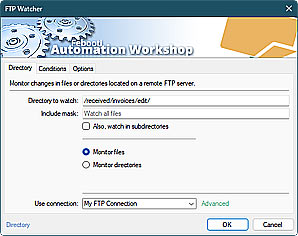
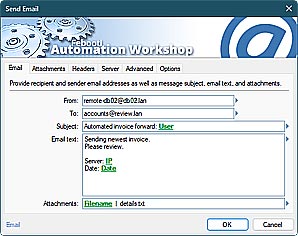
Automation Workshop is a solution to automate Windows tasks—use numerous Triggers and choose from 100+ Actions, including Send Email with rich security features—automate your awesome workflows within minutes.
Just look at some of the features…
Automation Workshop aids you to automate any repetitive computer or business task by providing state-of-the-art GUI tools · view quick automation demos
Related commands
Quick look
- Quick start · start sending the CMD email in minutes
- Tips & Tricks · a few quick email tricks
- Email attachments · use simple wildcards or advanced file masks to attach multiple files
- Debug email client-server connection · use DEBUG and advanced DEBUGX commands
- Parameter substitution using USEFILE and CONFIG · use a text file as any parameter
- Batch file & errorlevels · errorlevel values can be used in conditional processing
- Command Line Email parameters · see all email commands
Popular SMTP settings
Need help?
If you have any questions, please do not hesitate to contact our support team.