
The ATTACH (or FILE) command allows you to attach a single or multiple files to an email message. A file from the local disk can be attached using a relative or absolute path. Files from a network share can be attached using a full or absolute path.
The Command Line Email utility provides an easy way to send email with attachments from the Command prompt (cmd.exe). Advanced file mask and wildcard support allows you to define attachments in a very handy and simple manner. It is possible to attach a whole folder or just a single document.
Command syntax
- febootimail -ATTACH image.jpg
- febootimail -ATTACH *.doc -ATTACH Report-2021-??-??.xls
- febootimail -FILE document.docx -FILE "my reports\sales.xlsx"
- febootimail -FILE "C:\my files\presentation.pdf"
- febootimail -FILE "image001.jpg | image002.jpg | image003.jpg"
Multiple attachments can be added to the email, by repeating the ATTACH argument followed by a filename. Alternatively, file names can be specified separated with a pipe symbol (see the example above).
It is advised to always use quotes around filenames. If a filename contains spaces, the quotes are mandatory. However, simple filenames may be specified without quote characters.
febootimail -SERVER smtp.example.net -FROM ed@example.net -TO carter@example.com -ATTACH "C:\My Docs\Presentation.pptx" -ATTACH "notes.doc" -TEXT "Sending out the presentation and notes as mail attachments" Related commands
Smart alternative
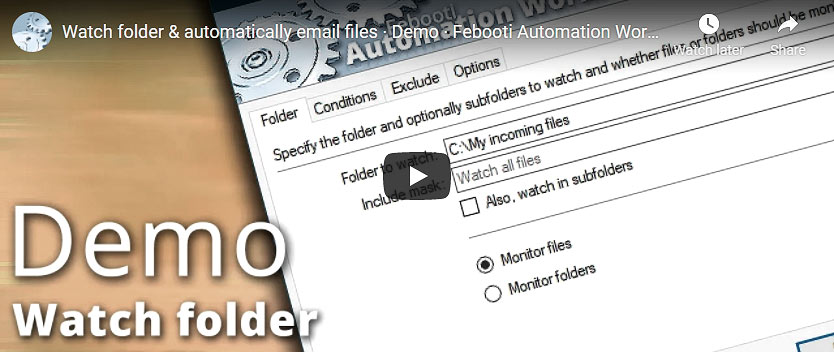
Automate the process of watching a folder for new files using Automation Workshop. When a new file appears in the monitored folder, it can be copied, emailed, uploaded to an FTP server, and much more · See all 100+ Automation Actions.
Quick look
- Quick start · start sending the CMD email in minutes
- Tips & Tricks · a few quick email tricks
- Debug email client-server connection · use DEBUG and advanced DEBUGX commands
- Parameter substitution using USEFILE and CONFIG · use a text file as any parameter
- Batch file & errorlevels · errorlevel values can be used in conditional processing
- Command Line Email parameters · see all email commands
Need help?
If you have any questions, please do not hesitate to contact our support team.