
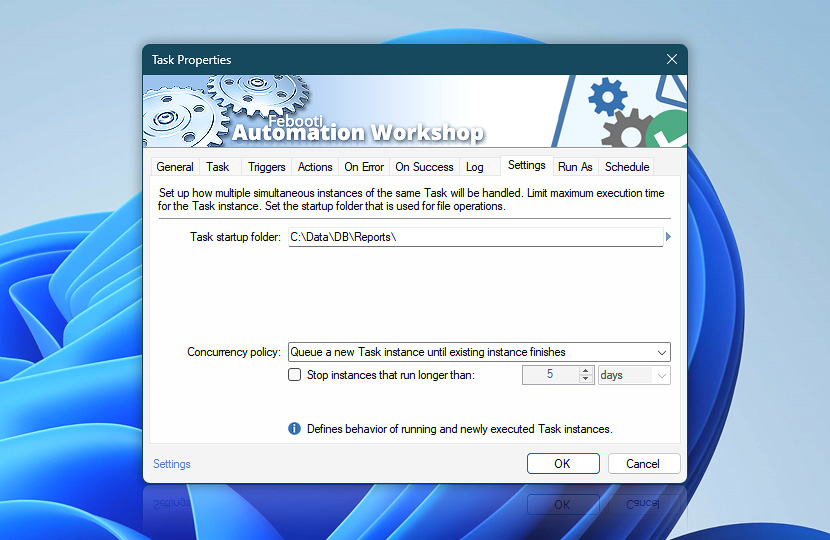
The Settings tab allows you to assign a performance profile for the workflow and manage the behavior of simultaneous Task executions. Depending on the triggering parameters and Task execution specifics, an earlier instance of the Task may still be running (or even queued) when another instance is launched.
When configuring Task's multiple instance handling, a careful consideration has to be taken on whether its structure allows for running of parallel instances or only sequential instance execution can work.
It is also possible to set Task working folder. The parameter will be used for path specification for all Actions that do not explicitly point to particular location. Task maximum run time specifies the amount of time after which the Task will be forcefully terminated.
| Settings | Details |
|---|---|
| Task startup folder | Task working folder which will be used as a default path if not specified otherwise. Note that during Task execution the current folder can be changed by using Change Current Folder Action. If startup folder does not exist, the Warning Event 2208 will be shown. |
| Performance profile | Different performance profiles are designed to meet various system requirements by optimizing resource allocation. Each option balances efficiency, responsiveness, and energy conservation according to your specific automation needs. Profiles are designed to optimize the performance according to the unique requirements of the task at hand, offering you the flexibility and control over system resources. Choose one of the following performance profiles:
|
| Concurrency policy | Defines the behavior of active and newly executed Task instances—select how new instance of already running (or queued) Task will be handled. Depending on Task architecture, user can choose one of the following Task execution scenarios:
Additionally, the Queue Manager limits the Maximum number of concurrently running Tasks based on the user-specified concurrency settings. While the Concurrency policy sets or adjusts the limits for a specific Task, the maximum running Tasks option applies to all running Tasks. |
| Stop instances that run longer than | Set the maximum time limit for running an instance of the Task. Usually, the Task is stopped only when its currently performed Action completes. |
| Limit concurrently running instances to | When enabled, limits how many instances of this specific Task can run simultaneously. This is a per-Task setting, in contrast to the global limit defined in Queue Manager under Maximum number of concurrently running Tasks. |
| Time units |  Define and set a time frame in any given preferred format—be it milliseconds, seconds, minutes, hours, or days. Define and set a time frame in any given preferred format—be it milliseconds, seconds, minutes, hours, or days. |
| Browse |  Use Browse to select a particular file or folder on local disk, network share on LAN (local area network), etc. Use Browse to select a particular file or folder on local disk, network share on LAN (local area network), etc. |

Note
- The value specified as Task startup folder parameter can be retrieved from any Action within the Task by using Task startup folder value from Task Properties group of Internal category in Variable Wizard.
Help at your fingertips…
If you have any questions, please do not hesitate to contact our support team.