
 This is an upcoming feature. Extract Webpage Elements is planned for general availability in version 10.1.
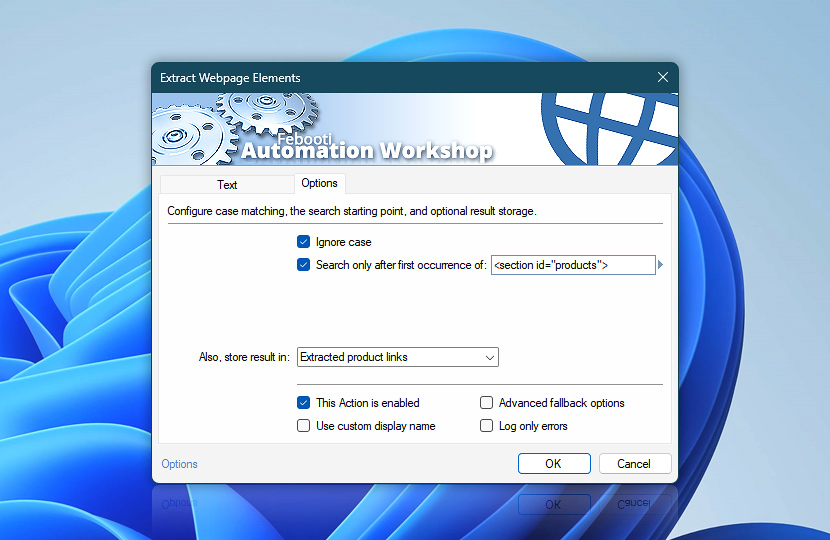
The Options tab of the Extract Webpage Elements Action allows you to configure case matching, limit where the search begins, and optionally store the extracted result. These settings help narrow the HTML region being processed and accommodate differences in capitalization.
Choose whether uppercase and lowercase characters are treated as equivalent. You can also specify a marker whose first occurrence defines the starting point for element extraction, allowing earlier navigation, header, or unrelated page content to be skipped.
| Options | Details |
|---|---|
| Ignore case | Controls whether text comparisons performed during extraction are case-sensitive:
|
| Search only after first occurrence of | Limits extraction to the HTML content that follows the first occurrence of the specified text, symbol, tag, or other marker. Content before the marker is skipped. Use this option to begin processing within a particular section of a webpage, such as a product list, article body, table, or results container. |
| Also, store result in | The result of the retrieval operation is already accessible via the Variable Wizard. Optionally, choose an existing variable to store the result. To create an empty variable, use the Set Variable Action. |
| Variable Wizard |  Use dynamic data input—substitute a parameter from a file, web, connected Trigger, other Actions, date and time presets, etc. Use dynamic data input—substitute a parameter from a file, web, connected Trigger, other Actions, date and time presets, etc. |
| This Action is enabled | An Action is executed only if it is enabled. Otherwise, it will be automatically skipped (completely ignored) from the Task flow. |
| Use custom display name | Rename this Action, to make a human-readable workflow that will help you to find, read, and make sense of the Task structure later. |
| Advanced fallback options | Manage the advanced fallback options—select which error types will lead to automatic execution of predefined workaround operations. |
| Log only errors | Do not log information and warning messages for this Action. It may be useful to keep the log file small and tidy on production systems. |
We are here to help…
If you have any questions, please do not hesitate to contact our support team.