
 This is an upcoming feature. Extract Webpage Elements is planned for general availability in version 10.1.
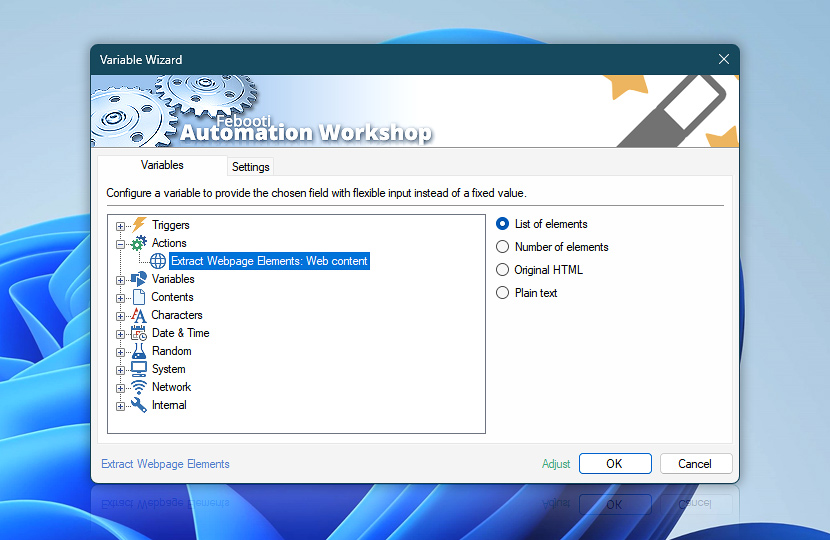
After processing the supplied HTML, the Extract Webpage Elements Action provides the retrieved elements, their count, the original HTML, and a plain-text representation as dynamic Variable Wizard values. These values can be reused directly by subsequent Actions without creating additional variables.
Extracted elements are returned as lists and may contain multiple levels when several nodes are requested for each matching element. They can be processed automatically with list-aware Actions or accessed individually by index.
| Variable | Details |
|---|---|
| List of elements | Returns the values retrieved from all matching HTML elements. When multiple nodes are specified, the result can form a multi-level list in which each matched element contains the requested node values in their defined order.
Examples:
|
| Number of elements | Returns the total number of HTML elements matched by the Action. The value represents matched elements, regardless of how many nodes are retrieved from each one.
Examples:
|
| Original HTML | Returns the complete HTML source exactly as supplied to the Extract Webpage Elements Action before processing. Useful when the same source must later be searched again, stored, logged, or processed by another Action.
Examples:
|
| Plain text | Returns a plain-text representation of the supplied HTML with markup removed while preserving its readable textual content. Useful when the page content itself is needed without HTML tags and attributes.
Examples:
|
| Completion status | Retrieve Action execution status with a possible value—Successful or Failed. Or Empty, if Action has not been executed yet. |
| Adjust* | Streamline creation of Task workflows even further—instantly make quick variable adjustments such as in-place text replacement (all, first, or last), ensuring (starts, ends, or does not), trimming (whitespaces, quotes, etc.), or changing capitalization. Chain multiple adjustments. Optionally, set a different display name. |
Automatic list processing…
The Extract Webpage Elements variables returned as lists (even multi-level) can be automatically processed in further Actions. Use the For Each Action to parse a given text string (any list variable) and sequentially retrieve its elements one by one · see list processing examples. Or, use the Split Text and Lookup Text Actions to access list elements by their indices.
Need help?
If you have any questions, please do not hesitate to contact our support team.