
 This is an upcoming feature. Extract Webpage Elements is planned for general availability in version 10.1.
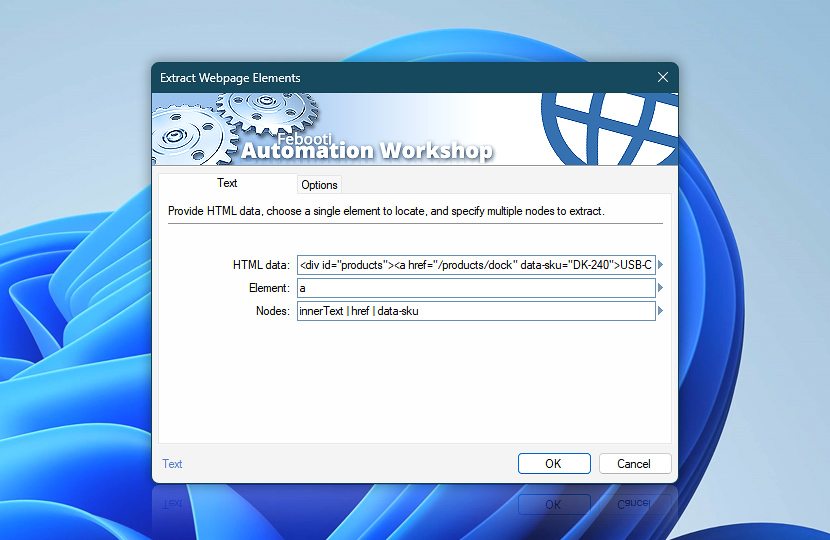
The Text tab of the Extract Webpage Elements Action specifies the source HTML, the element to locate, and the values to retrieve from each matching element. A single element type can be searched while multiple text or attribute nodes are collected in the same operation.
Provide the HTML directly or dynamically through the Variable Wizard. Enter the element name with or without angle brackets, then list the required nodes in the order they should be retrieved. Case matching, the search starting point, and optional result storage are configured separately on the Options tab.
| Text | Details |
|---|---|
| HTML data | Specifies the HTML source to search. Enter HTML directly or use the Variable Wizard to provide dynamic content from files, Triggers, previous Actions, web responses, variables, and other sources. |
| Element | Specifies the HTML element to locate, such as a, div, img, li, or span. Enter a single tag name with or without angle brackets—for example, a or <a>.All matching elements within the selected search scope are processed. |
| Nodes | Specifies one or more values to retrieve from each matching element. Separate multiple node names with the | (vertical bar) character. Common examples include:
The nodes are processed in the order in which they are listed. |
| Variable Wizard |  Use dynamic data input—substitute a parameter from a file, web, connected Trigger, other Actions, date and time presets, etc. Use dynamic data input—substitute a parameter from a file, web, connected Trigger, other Actions, date and time presets, etc. |
Interconnect
- Extract Webpage Elements integration and auditing—Variables (dynamic data) and Events (recorded activity). Use Variables to process HTML received from web Actions, files, connected Triggers, or previous workflow steps, and use Events to track successful or unsuccessful webpage element retrieval for auditing and workflow control.
Notes
- Enter the element as a tag name with or without angle brackets. For example, both
aand<a>locate link elements. - Use the Options tab to ignore capitalization differences or begin searching only after a specific section marker, tag, or other occurrence.
Questions?
If you have any questions, please do not hesitate to contact our support team.