
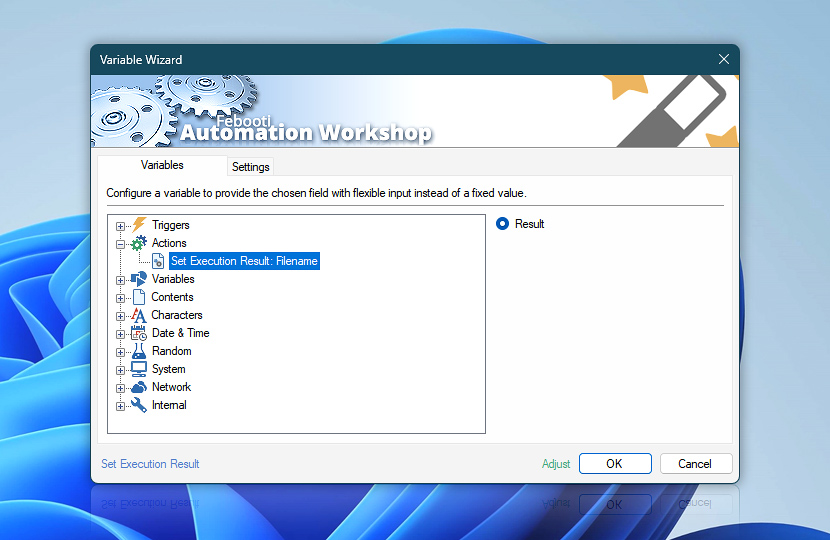
After the Set Execution Result Action sets the value, it can be accessed within the same Task using the Variable Wizard. However, the true benefit is that this value becomes available to the Start Task Action in the calling Task—allowing seamless data exchange between Tasks through the Variable Wizard.
| Variable | Details |
|---|---|
| Result | Returns the custom value (simple, multi-line, etc.) that was set in the Action.
Examples:
|
| Completion status | Retrieve Action execution status with a possible value—Successful or Failed. Or Empty, if Action has not been executed yet. |
| Adjust* | Streamline creation of Task workflows even further—instantly make quick variable adjustments such as in-place text replacement (all, first, or last), ensuring (starts, ends, or does not), trimming (whitespaces, quotes, etc.), or changing capitalization. Chain multiple adjustments. Optionally, set a different display name. |
Automatic list processing…
The Set Execution Result variables returned as lists (even multi-level) can be automatically processed in further Actions. Use the For Each Action to parse a given text string (any list variable) and sequentially retrieve its elements one by one · see list processing examples. Or, use the Split Text and Lookup Text Actions to access list elements by their indices.
Need help?
If you have any questions, please do not hesitate to contact our support team.