
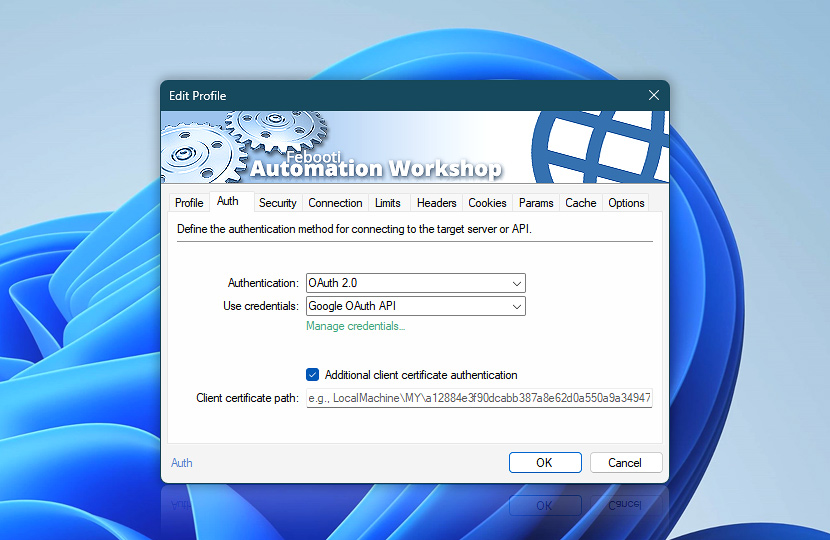
Configure how this Web Profile authenticates with websites, APIs, and web services. Authentication settings are stored in the profile and reused by Internet and Web Actions that use it.
| Auth | Details |
|---|---|
| Authentication | Select the authentication method used by this Web Profile:
|
| Username | Enter the username used for authentication. The Username and Password fields are available when Authentication is set to Digest, NTLM, or Basic. |
| Password | Enter the password used together with the specified username. |
| Use credentials | Select from existing OAuth 2.0 credentials or click the link to create and configure a new one through the API Keys & Credentials Manager. This option is available when Authentication is set to OAuth 2.0. |
| Token | Enter the bearer token used to authorize requests. This field is available when Authentication is set to Bearer Token. |
| API Key | Enter the API key value used to authenticate requests. This field is available when Authentication is set to xAPI Key. |
| Additional client certificate authentication | Enable client certificate authentication in addition to the selected authentication method. |
| Client certificate path | Specify the client certificate in the Windows Certificate Store using the format StoreLocation\. The certificate must include its private key, and the account running Automation Workshop must have permission to access that key.For installation details and additional store locations, see Client certificates and mTLS. Examples:
|
Client certificates and mTLS
Client certificate authentication allows Automation Workshop to present a certificate when establishing a secure HTTPS connection. It is commonly used for mutual TLS (mTLS) authentication between automated services, APIs, gateways, and other systems that require cryptographic proof of the client's identity.
Unlike standard HTTPS, where only the server presents a certificate, mTLS authenticates both sides of the connection. The server presents its certificate as usual, while Automation Workshop also presents the configured client certificate and proves possession of its associated private key.
Certificate store path
Specify a client certificate using the following Windows Certificate Store format:
- StoreLocation\
StoreName\ Thumbprint - LocalMachine\
MY\ 934a7ac6f8 a5d579285a 74fa61e19f 23ddfe8d7a
The three parts identify:
- StoreLocation · Defines whose certificate store is used, such as
LocalMachineorCurrentUser. - StoreName · Identifies the certificate store.
MYis the internal name of the Windows Personal certificate store and is the normal location for client certificates. - Thumbprint · Identifies the individual certificate by its SHA-1 thumbprint, represented as 40 hexadecimal characters without spaces.
Recommended store
Because Automation Workshop runs as a Windows service, the recommended location for most installations is the local machine Personal store:
- LocalMachine\
MY\<thumbprint> - LocalMachine\
MY\ 934a7ac6f8 a5d579285a 74fa61e19f 23ddfe8d7a
The certificate must include its private key, and the Windows account under which the Automation Workshop service runs must have permission to read that private key.
Current user store
When an Automation Workshop workflow is configured to run under a specific Windows user account and the client certificate is installed for that same user, the Current User certificate store can be used:
- CurrentUser\
MY\<thumbprint>
Use this configuration only when the certificate and its private key are accessible to the account provided under the Run As settings.
Service store
Advanced Windows configurations may place a certificate in the certificate store associated directly with a service. In such environments, use:
- CurrentService\
MY\<thumbprint>
This is normally required only when certificate provisioning and service identity management have been configured specifically to use a service certificate store.
Other store locations
Automation Workshop also accepts additional Windows Certificate Store locations:
- Services\
MY\<thumbprint> - CurrentUserGroupPolicy\
MY\<thumbprint> - LocalMachineGroupPolicy\
MY\<thumbprint> - LocalMachineEnterprise\
MY\<thumbprint>
These locations are intended for specialized Windows environments. They are usable for client authentication only when the selected certificate includes an accessible private key. In typical installations, policy and enterprise stores primarily contain trust or policy certificates rather than usable client identities.
Other certificate stores
MY, the internal name of the Windows Personal store, is the appropriate store for client certificates in almost all configurations.
Other store names are also accepted when required by a specifically configured environment, for example:
- LocalMachine\
Root\<thumbprint> - LocalMachine\
CA\<thumbprint> - LocalMachine\
TrustedPeople\<thumbprint>
A certificate stored there can be used for client authentication only if it includes the required private key and that key is accessible to the Automation Workshop service account.
Store paths use the Windows internal store identifiers, not necessarily the names displayed in the certificate management interface. For example, Personal uses MY, while Intermediate Certification Authorities uses CA.
Import a client certificate
A client certificate and its private key must already exist in a Windows Certificate Store before Automation Workshop can use it. Client certificates are commonly supplied as password-protected .pfx or .p12 files and then imported into the appropriate Windows store.
Certificates snap-in
To import a certificate into the recommended Local Machine Personal store:
- Press Win+R, enter
mmc, and press Enter. - Choose File → Add/Remove Snap-in.
- Select Certificates, click Add, and choose Computer account.
- Select Local computer, then finish adding the snap-in.
- Open Certificates (Local Computer) → Personal.
- Right-click Personal, choose All Tasks → Import, and select the
.pfxor.p12certificate. - Enter the certificate file password when requested and import the private key together with the certificate.
- Open the imported certificate, select the Details tab, and copy its Thumbprint.
- Use that value in Automation Workshop (Web profile → Client certificate path) as
LocalMachine\.MY\ <thumbprint>
Certificate management shortcuts
Windows also provides direct shortcuts to its certificate management interfaces:
certlm.msc· Opens certificates for the Local Machine.certmgr.msc· Opens certificates for the Current User.
These provide a quicker alternative to manually adding the Certificates snap-in through MMC.
PowerShell
A .pfx certificate can also be imported into the Local Machine Personal store with PowerShell:
Import-PfxCertificate -FilePath "C:\my\path\client.pfx" -CertStoreLocation Cert:\LocalMachine\My -Password (Read-Host -AsSecureString)To view certificates and their thumbprints:
Get-ChildItem Cert:\LocalMachine\My | Format-List Subject, ThumbprintCertutil
The Windows certutil utility can also import a PFX certificate:
certutil -importpfx -p <password> C:\my\path\client.pfxAdd -user when the certificate should be imported into the Current User store instead of the Local Machine store.
Mutual TLS explained
Standard HTTPS uses TLS to encrypt the connection and authenticate the server. The server presents its certificate, and the client verifies that certificate before the encrypted connection is established.
With mutual TLS (mTLS), the server additionally requests a certificate from the client. Automation Workshop presents the client certificate configured in the Web Profile and proves possession of its private key. The server can then verify the certificate before allowing the request to continue.
This provides strong machine-to-machine authentication and is commonly used for:
- Service-to-service API connections.
- Enterprise gateways and internal APIs.
- Financial and regulated services.
- Private cloud infrastructure.
- Partner integrations requiring certificate-based client identity.
The Additional client certificate authentication option therefore configures the client side of an mTLS connection. It can be used together with the primary Web Profile authentication method, allowing combinations such as OAuth 2.0 plus mTLS or API key authentication plus mTLS.
Have a question?
If you have any questions, please do not hesitate to contact our support team.