
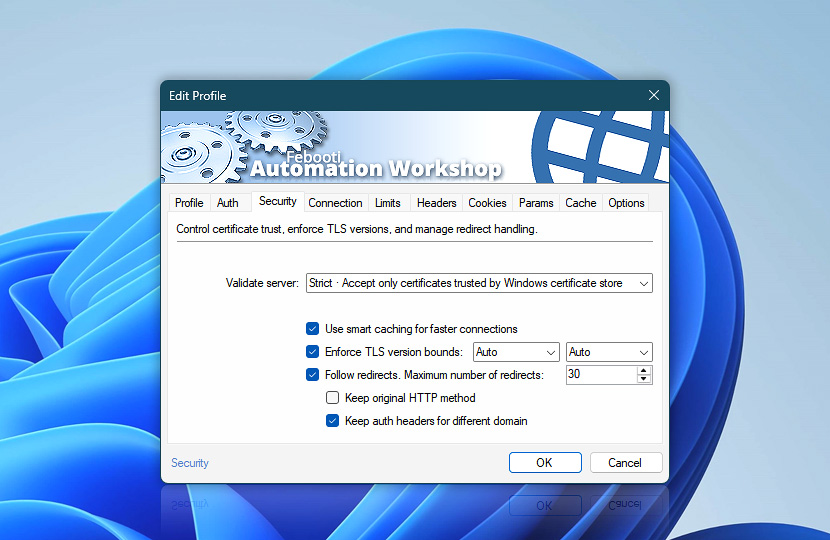
Configure how this Web Profile verifies servers, handles TLS connections, and follows redirects. These settings help control connection security and request behavior for Internet and Web Actions that use the profile.
| Security | Details |
|---|---|
| Validate server | Choose how server certificates are validated:
|
| Pinned Public Keys | Enter one or more allowed public keys for certificate pinning. When server validation uses Whitelist, only servers matching the specified public keys are trusted. Multiple hashes can be separated with either ; or | characters · Details
Examples:
|
| Use smart caching for faster connections | Use internal connection caching to improve HTTPS performance. Automation Workshop securely reuses previously established connection information when possible, reducing the work required to set up subsequent secure connections to the same server.
|
| Enforce TLS version bounds | Limit which TLS versions may be used for secure connections:
|
| Follow redirects | Allow requests to follow server redirects automatically. Use Maximum number of redirects to limit how many redirects may be followed. |
| Maximum number of redirects | Set the maximum number of redirects allowed for a single request. |
| Keep original HTTP method | Keep the original HTTP method when following redirects instead of allowing standard redirect handling to change it. When this option is disabled, POST requests redirected with 301, 302, or 303 may be repeated as GET requests for compatibility with common web server and browser behavior. Enable this option when the destination server requires the redirected request to remain a POST.This setting applies specifically to POST redirects with 301, 302, and 303. Other HTTP methods, such as PUT, PATCH, and DELETE, are not affected. Redirects with 307 and 308 already preserve the original HTTP method. |
| Keep auth headers for different domain | Keep authentication information when a redirect points to a different domain. This option is enabled by default for maximum compatibility with authentication flows that legitimately redirect between domains. Disable this option when redirected destinations should not receive the same authentication credentials. Keeping authentication information across domains should be used only when the redirect destination is trusted. This setting applies to OAuth 2.0, Bearer Token, Digest, NTLM, and Basic authentication. It has no effect when authentication is set to None. xAPI Key headers are not controlled by this option and continue to be included in redirected requests according to their configured header behavior. |
Note
- Relaxed server validation and cross-domain authentication headers can reduce security. Use them only for trusted internal systems, test environments, or services that explicitly require this behavior.
Pinned Public Keys
Automation Workshop supports two formats for whitelisted server validation—a SHA-256 public key pin in sha256//… Base64 format and a SHA-256 public key hash in colon-separated HEX format. Hash values may contain one or more allowed keys, separated with either ; or | characters.
Pin persistence
When a server certificate is renewed, the same pinned value can continue to be used as long as the renewed certificate contains the same public key.
This allows certificate renewal without changing the Automation Workshop configuration. If the server receives a certificate with a new key pair, the pin must be updated through a trusted process before clients will accept the new server identity.
Behind the scenes
When the Whitelist · allow only specified certificates option is selected, Automation Workshop authenticates the server by checking that it possesses the private key corresponding to one of the certificates or public keys you explicitly provided.
Automation Workshop also checks that the hostname being connected matches the certificate, including its Subject Alternative Name entries when present. In this mode, the specified certificate or public key becomes the trust anchor. This is intended for expert use cases where the expected server identity is distributed through a trusted out-of-band channel, such as a USB drive or a controlled provisioning process.
Does not…
This mode does not perform standard public certificate authority validation. Automation Workshop does not check whether the certificate was issued by a trusted CA, whether the issuing CA is present in the operating system trust store, whether the certificate chain is valid, whether intermediate certificates are trusted, or whether the certificate follows public Web PKI rules.
This mode also does not perform the full set of checks normally associated with public TLS certificate validation. Automation Workshop does not check whether the certificate is expired or not yet valid, whether it has been revoked, or whether its key usage and extended key usage fields are appropriate for HTTPS/server authentication.
Does…
However, Automation Workshop does check that the hostname being connected to matches the names in the certificate.
Use this option only when you already know, through a trusted process, which certificate or public key belongs to the server. Do not obtain or update the allowed certificate or public key through the same network connection that it is supposed to authenticate.
1 · PPK extraction…
To extract a pinned public key securely, use OpenSSL on Linux, WSL, or another trusted environment. Ideally, run these commands on the server where the website is hosted. If that is not possible, run them only from a trusted network. Retrieving certificates over an untrusted connection may expose the process to a man-in-the-middle attack and result in pinning the wrong certificate or public key.
The extraction process has three initial steps—retrieve the server certificate, extract the public key as a PEM file, and save the public key in DER format. After that, you can create the pinned value in either sha256// Base64 format or SHA-256 HEX format.
Server certificate
First, retrieve the server certificate from the TLS connection:
openssl s_client -servername www.example.com -connect www.example.com:443 < /dev/null | sed -n "/-----BEGIN/,/-----END/p" > www.example.com.pem PEM file
Next, extract the public key from the certificate and save it as a PEM file:
openssl x509 -in www.example.com.pem -pubkey -noout > www.example.com.pubkey.pem DER file
Convert the public key from PEM format to DER format:
openssl asn1parse -noout -inform pem -in www.example.com.pubkey.pem -out www.example.com.pubkey.der 2 · PPK finalize…
Automation Workshop supports pinned public keys in either sha256// Base64 format or SHA-256 HEX format. Both formats identify the same public key, so choose the format that best fits your configuration style.
sha256//base64
To create a sha256// Base64 pin, calculate the SHA-256 hash of the DER public key, encode the result as Base64, and add the sha256// prefix:
openssl dgst -sha256 -binary www.example.com.pubkey.der | openssl base64 | awk '{print "sha256//" $0}' Example generated sha256// Base64 pin:
sha256//Dk4LmRtYpHsXcBwFqN3vGzUjAe8oP1iCx2hVbT6yMnE= sha256//hex
To create a HEX pin, calculate the SHA-256 hash of the DER public key and format it as colon-separated uppercase HEX string:
openssl dgst -sha256 -binary www.example.com.pubkey.der | xxd -p -c 256 | sed 's/../&:/g; s/:$//' | tr '[:lower:]' '[:upper:]' Example generated SHA-256 HEX pin:
EE:F6:9D:AF:16:BB:9C:67:33:76:41:6B:34:E9:EF:EE:04:ED:F3:3D:3E:94:C6:2B:68:46:CD:E1:E0:CE:26:0B 3 · PPK usage…
Use the generated sha256// Base64 or SHA-256 HEX pin in the Pinned Public Keys field. To allow more than one public key, separate multiple hashes with either ; or | characters.
- sha256//
YhKJgQs2nF 8vR4mTcW9p DxLzA6eBuK j3HoNvXqMt 7Ec= - sha256//
YhKJgQs2nF 8vR4mTcW9p DxLzA6eBuK j3HoNvXqMt 7Ec= ; sha256// Pq8wZxNcVb HmKjT3rFyG 5dLsA9eUvB nXoCpQiM2t J7k= ; sha256// Dk4LmRtYpH sXcBwFqN3v GzUjAe8oP1 iCx2hVbT6y MnE= - sha256//
YhKJgQs2nF 8vR4mTcW9p DxLzA6eBuK j3HoNvXqMt 7Ec= | sha256// Pq8wZxNcVb HmKjT3rFyG 5dLsA9eUvB nXoCpQiM2t J7k= | sha256// Dk4LmRtYpH sXcBwFqN3v GzUjAe8oP1 iCx2hVbT6y MnE=
Additional examples…
For more information and public key extraction examples, see the cURL documentation on public key pinning.
Need help?
If you have any questions, please do not hesitate to contact our support team.