
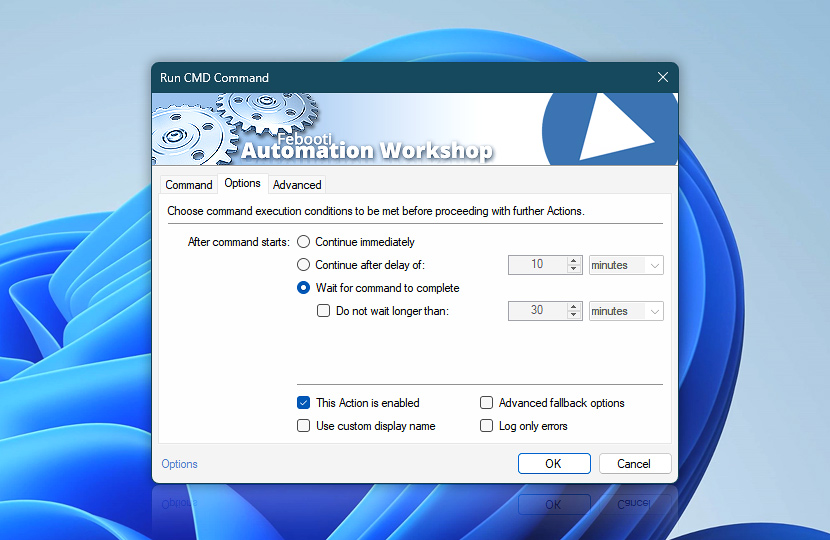
The Options tab of the Run CMD Command Action allows you to define the way a Task will proceed with the following Actions after executing a CMD command. It can launch the next Action right after running the CMD command, after a fixed delay, or only after the termination of the specified command or program.
| Options | Details |
|---|---|
| Continue immediately | The Task's next Action will be executed immediately after starting the CMD command, batch file, or Windows executable. |
| Continue after delay of | The Task's next Action will be executed a specified amount of time after starting the CMD command, batch file, or Windows executable. |
| Wait for command to complete | The Task's next Action is to be started right after the execution of the CMD command or batch file ends · Exit codes |
| Do not wait longer than | If enabled, Automation Workshop does not wait for the end of the CMD command or batch file execution for more than the specified amount of time before proceeding with the next Action. |
| Time units |  Define and set a time frame in any given preferred format—be it milliseconds, seconds, minutes, hours, or days. Define and set a time frame in any given preferred format—be it milliseconds, seconds, minutes, hours, or days. |
| This Action is enabled | An Action is executed only if it is enabled. Otherwise, it will be automatically skipped (completely ignored) from the Task flow. |
| Use custom display name | Rename this Action, to make a human-readable workflow that will help you to find, read, and make sense of the Task structure later. |
| Advanced fallback options | Manage the advanced fallback options—select which error types will lead to automatic execution of predefined workaround operations. |
| Log only errors | Do not log information and warning messages for this Action. It may be useful to keep the log file small and tidy on production systems. |
Questions?
If you have any questions, please do not hesitate to contact our support team.