
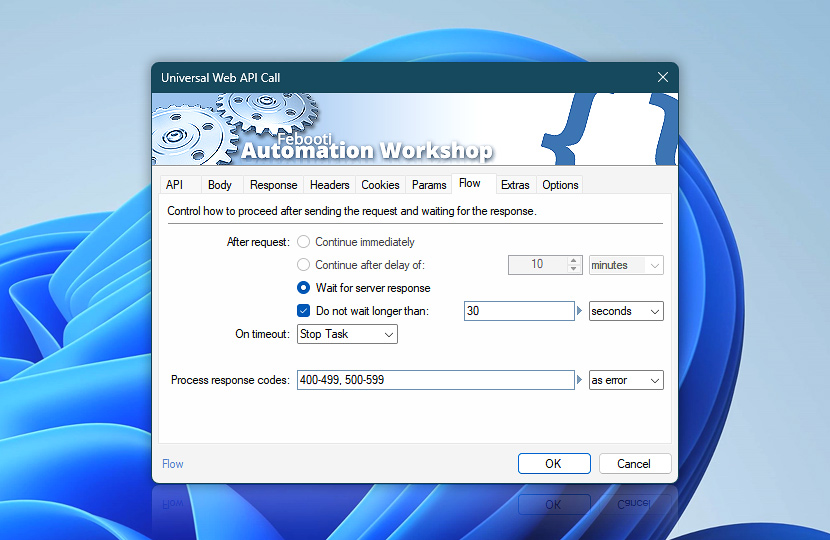
Define how the Universal Web API Call Action behaves when sending requests to web services and APIs. Control whether execution continues immediately, waits for a response, or applies a delay depending on how the API result is used in your workflow.
These settings also determine how response codes and timeouts are handled, giving you fine-grained control over request execution, error handling, and overall workflow reliability when interacting with external systems.
Use these options to build resilient integrations, handle variable response times, and adapt to different API behaviors—from simple requests to complex, multi-step data exchange workflows · Flow handling explained
| Flow | Details |
|---|---|
| After request | After the Universal Web API Call Action sends a request, choose how the workflow should proceed:
Waiting is recommended when the API response is required for further processing, such as parsing returned data, handling authentication flows, or chaining dependent requests. Immediate continuation is suitable for fire-and-forget calls, background integrations, or non-critical telemetry scenarios where response data is not needed. In such cases, the request continues to be processed asynchronously while the workflow proceeds independently. |
| Enable waiting timeout | Optionally, to prevent an unintended workflow lockdown (in case the Universal Web API Call Action is waiting indefinitely), set the Do not wait longer than timeout value option and choose a procedure to perform when On timeout is reached… |
| On timeout | Choose behavior if the Universal Web API Call Action times out:
|
| Process response codes | Define how specific server response codes are handled during execution:
Handle HTTP response codes (such as 200, 400, 401, 403, 404, or 500) based on how critical successful API communication is for your workflow. This allows you to distinguish between acceptable variations and conditions that require immediate attention or recovery logic. |
| Time units |  Define and set a time frame in your preferred format—be it milliseconds, seconds, minutes, hours, or days. Define and set a time frame in your preferred format—be it milliseconds, seconds, minutes, hours, or days. |
| Variable Wizard |  Use dynamic data input—substitute a parameter from a file, web, connected Trigger, other Actions, date and time presets, etc. Use dynamic data input—substitute a parameter from a file, web, connected Trigger, other Actions, date and time presets, etc. |
Note
- Currently, the Wait for server response option is the recommended and fully supported flow control option.
Just ask…
If you have any questions, please do not hesitate to contact our support team.