
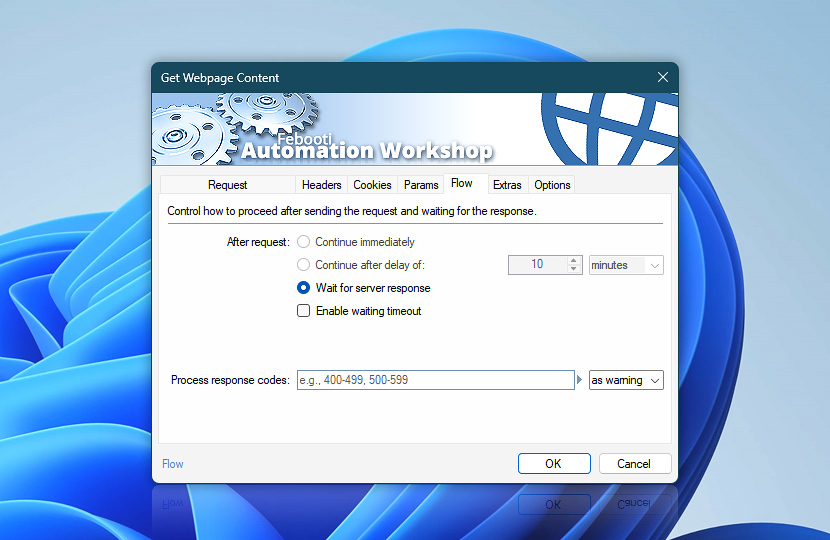
Define how the Get Webpage Content Action behaves after sending a request and interacting with a remote server. Control whether execution continues immediately, waits for a response, or applies a delay based on how the retrieved content is used.
These settings also determine how response codes and timeouts are handled, helping you build reliable workflows when working with dynamic webpages, slow endpoints, or unpredictable server behavior · Flow handling explained
| Flow | Details |
|---|---|
| After request | After the Get Webpage Content Action sends a request, choose how the workflow should proceed:
Waiting ensures the retrieved webpage content is available for further processing, while immediate continuation is suitable when a response is not needed. |
| Enable waiting timeout | Optionally, to prevent an unintended workflow lockdown (in case the Get Webpage Content Action is waiting indefinitely), set the Do not wait longer than timeout value option and choose a procedure to perform when On timeout is reached… |
| On timeout | Choose behavior if the Get Webpage Content Action times out:
|
| Process response codes | Define how specific server response codes are handled during execution:
Handle HTTP response codes (such as 404 or 500) based on how critical successful content retrieval is for your workflow. |
| Time units |  Define and set a time frame in your preferred format—be it milliseconds, seconds, minutes, hours, or days. Define and set a time frame in your preferred format—be it milliseconds, seconds, minutes, hours, or days. |
| Variable Wizard |  Use dynamic data input—substitute a parameter from a file, web, connected Trigger, other Actions, date and time presets, etc. Use dynamic data input—substitute a parameter from a file, web, connected Trigger, other Actions, date and time presets, etc. |
Note
- Currently, the Wait for server response option is the recommended and fully supported flow control option.
Need a helping hand?
If you have any questions, please do not hesitate to contact our support team.