
 By Thomas Underwood 🕤 Updated on July 19, 2023 at 9:30 am
Automation Workshop can take care of multi-user Windows environments. Various users may have different access rights to files, folders, network shares, and mapped drives. Thus it is very important to correctly specify user credentials for automated task execution.
Normally, the Run As properties are first set upon creating a Task in Task Wizard run as properties.
| Run As | Details |
|---|---|
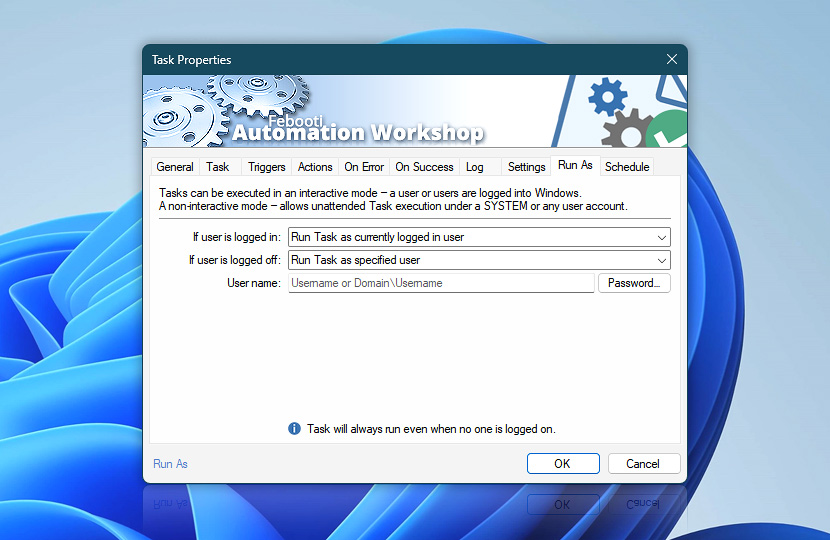
| If user is logged in | Interactive mode · If a user is already logged on, Automation Workshop can access the same graphical user interface, file, folder, and network resources that are available for the user. Special care must be taken when accessing mapped drives from automated workflows. |
| If user is logged off | Non-interactive mode · If no user is logged on, Automation Workshop runs in a non-interactive mode which means that it can access file, folder, and network resources that specified user credentials are entitled to. However, access to the graphical user interface is limited. |
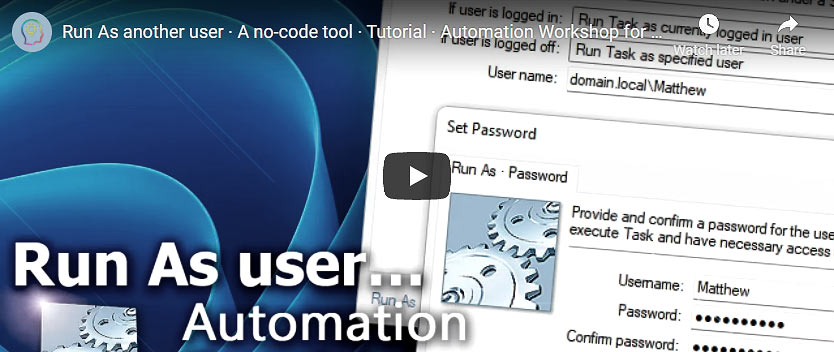
| User name | If the Run as specified user option is selected either for interactive or non-interactive Task execution, user credentials are required:
Alternatively, you can specify a computer or domain name in different formats:
|
| Password | Provide a password for the specified user account. |
| Set default user | Set default user credentials in the options. The Task will be executed with those credentials (according to desktop and network access rights) if the Run As option is set to Run Task as default user. |
Run As…
Different accounts for Task execution scenarios can be specified—whether any user is logged in or not. The condition If user is logged in is active when any user logs into Windows. On the other hand, the condition If user is logged off is satisfied when all users are logged off or not logged in yet.
These 2 scenarios give us an opportunity to use different user credentials depending on when a user is logged on or not · Run As settings explained
| Run | Details |
|---|---|
| Run Task as currently logged in user | Executes the Task in an interactive mode under the user account that is currently logged in. If Task uses the User Logon & Logoff Trigger, it automatically runs under credentials of the currently logged in user. The currently logged in user has two different drive mappings—one for the regular mode and other for the elevated mode (when the User Account Control is activated). Automation Workshop runs all Tasks in the elevated mode, thus the drive mappings that are created in the regular mode may not be available. There are multiple ways to access mapped drives as described in: UNC vs mapped drives. |
| Run Task as Service · SYSTEM | Executes the Task under the System account (as Windows Service). It does not have access to any network resources, such as UNC, mapped drives, shares, etc. |
| Run Task as specified user | Executes the Task under the specified user account. Account credentials have to be provided. |
| Run Task as default user | Executes the Task with the default user account credentials. Note that the default user account is common for all Tasks. The default user account is configured in the Automation Workshop Tasks options. |
| Do not run the Task | The Task is not executed and all Triggers are deactivated. |
Summary
Combine both Interactive and Non-interactive modes to set the Task to run when a user is logged on or opposite—when no one is logged on, or both:
- Task will always run even when no one is logged on.
- Task will run only when someone is logged on.
- Task will run unattended, only when no one is logged on.
- Task will never run.
Note
- Switching from Interactive (user logged in) to Non-interactive mode (no user logged in) or back, will reset the number of counted triggering instances to zero (assuming that different user credentials are used for each mode). Therefore, the Task execution can be affected by a user logon or logoff (specifically, in cases when a Trigger is set to execute the Task after meeting triggering conditions for multiple times).
Run As Events
Ask for more…
If you have any questions, please do not hesitate to contact our support team.