Automation Workshop requires .NET Framework 2.0 to operate. Some Windows versions such as Vista, 7, Server 2008 and Server 2008 R2 come with .NET preinstalled. In this case Automation Workshop works right out of the box.
Windows 8 has .NET Framework 2.0 preinstalled; however, it is not enabled by default. To enable .NET Framework 2.0, go to Control Panel - Programs - Turn Windows features on or off and mark the .NET Framework 3.5 checkbox. Note that .NET Framework 3.5 includes .NET Framework 2.0.
Windows Server 2012 has .NET Framework preinstall, but it has to be enabled manually either in Group Policy settings; in Add Roles and Features Wizard, by running Windows PowerShell cmdlets, or some other method. For more details consult Microsoft help - Install or Uninstall Roles, Role Services, or Features.
To enable .NET Framework on Windows Server 2012 we recommend using the simplest PowerShell method (other methods are described in aforementioned link).
PowerShell method on Windows Server 2012 - in Windows Start screen click right mouse button on Windows PowerShell. Choose the Run as Administrator option in Command Bar. Once in PowerShell window, execute one of the following commands:
Windows PowerShell
Copyright (C) 2012 Microsoft Corporation. All rights reserved.
PS C:\Users\Admin> DISM /Online /Enable-Feature /FeatureName:NetFx3 /AllIf necessary, a particular installation media location can be specified (e.g. on D:\ drive):
Windows PowerShell
Copyright (C) 2012 Microsoft Corporation. All rights reserved.
PS C:\Users\Admin> DISM /Online /Enable-Feature /FeatureName:NetFx3 /All /LimitAccess /Source:d:\sources\sxsOnce the command is executed, wait for the The operation completed successfully message which indicates that .NET Framework has been installed.
Windows PowerShell
Copyright (C) 2012 Microsoft Corporation. All rights reserved.
PS C:\Users\Admin> DISM /Online /Enable-Feature /FeatureName:NetFx3 /All
Deployment Image Servicing and Management tool
Version: 6.2.8400.0
Image Version: 6.2.8400.0
Enabling feature(s)
[==========================100.0%==========================]
The operation completed successfully.
C:\Users\Admin>Manual method on Windows Server 2012 - open Server Manager Dashboard and choose Add roles and features. In Installation Type choose Role-based or feature-based installation. Select server from the Pool. Leave Server Roles unmodified. In the Features enable .NET Framework 3.5 Features, ignore warning about alternative source path and press the Install button.

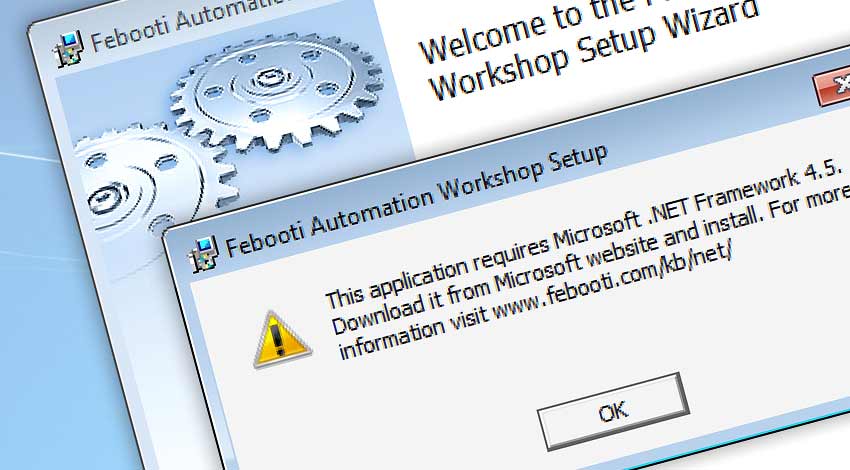
When installing Automation Workshop from .EXE installer file, it will verify the presence of .NET Framework in the system. If .NET Framework 2.0 is not installed, Automation Workshop will automatically download its setup from Microsoft's website and offer to install it. The process is easy and takes only a couple of mouse clicks. Note that .MSI installer will not offer to install .NET Framework, in which case it has to be done manually.

Download and read more on .NET Framework in the following resources.
Check the following additional download services section for information and help on downloading files.
Please do not hesitate to contact our support department with any possible further questions or to solve practical issues connected with file downloads.