
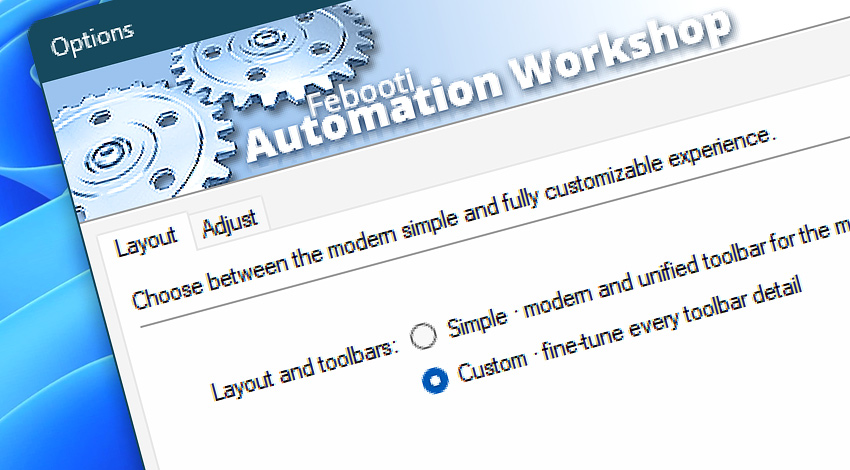
The Customize options allow adjusting toolbar button size and labels. Choose whether various program parameter input lines will feature a Browse or a Variable Wizard button next to them, only a cue arrow, or nothing.
Customize
- Layout · Choose between the modern, simple, and fully customizable experience.
- Adjust · Tune menu and toolbar size, visibility, and text options.
Options?
- Workshop · Password-protected access, and set the temporary working folder.
- Service · Enable or disable the Service (the functional core component) to globally start or stop all Automation Workshop activity. Configure Notification Area icon settings.
- Backup · Schedule automatic periodic backups or manually back up Automation Workshop Tasks, Settings, and Logs to the specified backup location.
- Tasks · Get information on the Task files' location on disk and choose the length of the delay before retrying Actions that have experienced an error. Provide the default user and its options.
- Queue · Set up a maximum number of simultaneously running Tasks, as well as the Queue Manager information update frequency and precision.
- Logs · Configure how logged events are displayed in the Log Manager. Options for tuning the log file size, location, and automatic management.
- Email · Set the SMTP server address and connection parameters to be applied when sending Task execution reports or using the Send Email Action. Access the Advanced email settings to set the email encoding, priority, and timeout that will be used when sending Task completion and error notifications.
We are here to help…
If you have any questions, please do not hesitate to contact our support team.