
 By Thomas Underwood 🕡 Updated on June 17, 2021 at 6:30 pm
This article will comprehensively explain to you the workings of a Task in a step-by-step manner.
Overview
Automation Workshop does Tasks! In essence, a Task (or a job) is the primary operational unit of Automation Workshop. A Task contains a full set of instructions which determines what, when, and how of the Task execution. That is why a good understanding of Task structure and states is crucial for efficient system automation.
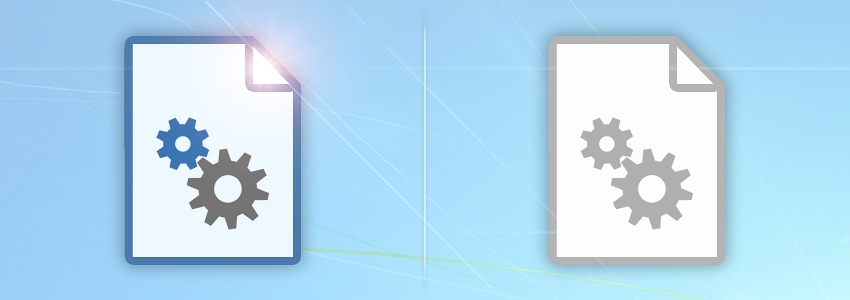
First of all, every Task in Automation Workshop can be in one of two opposite states, namely, any given Task is either Enabled or Disabled.
Enabled vs Disabled
What is the difference between an enabled and a disabled Task? Simply put, disabled Tasks cannot execute themselves. Obviously, we would like enabled Tasks to perform their operations, while expecting disabled Tasks to just do nothing. This applies to the situations when the following happens:
- Automation Workshop Service is started automatically at system startup.
- Service is started manually from Service tab of Automation Workshop options.
- A Task disables itself upon successful or failed execution.
- User changes the Task state, namely, enables or disables it via GUI.
- A custom or external app can toggle the Task state to enabled or disabled using API, or another machine can change a Task state using Remote deployment feature.
- Task state is changed by Enable Task, Disable Task or Toggle Task Action.
- A new Task has just been created.
In other words, every time when a Task is designed, loaded, or its state is changed, we should make sure it is set to either enabled or disabled at a particular moment. Remember, the state of a Task can be changed in various simple ways, such as:
- Selecting Task in Automation Workshop interface and choosing Enable or Disable Task in File—Properties menu. Alternatively, click right mouse button on a Task and select Enable or Disable option from context menu.
- By checking or unchecking the This Task is enabled box in Task tab of Task Properties. Task Properties can be opened by double-clicking the Task or selecting it and pushing Enter as well as from the File menu.
- By telling the appropriate Action within either the same Task or a different one to enable or disable it. Enable Task Action enables the specified Task. Disable Task Action disables the specified Task. Toggle Task Action changes Task state to the opposite, namely, enables the disabled Tasks and disables the enabled ones.
- The Task can automatically disable itself upon successful Task execution, failed Task execution, or both if told to do so in On Success or On Error tab of Task Properties, respectively.
Run As + Schedule
Upon Automation Workshop Service startup, it reads all Tasks into computer memory. Enabled Tasks are activated according to Run As and Schedule settings, which specify whether and from which user account (with what credentials) the Task will be executed both if user is logged in or if user is logged off at the moment of Task execution.
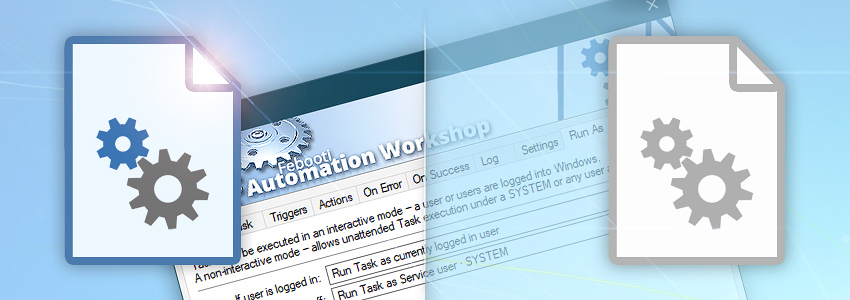
For example, you can choose among Task execution scenarios like these and others:
- Run Task in SYSTEM account both when a user is logged in and when no user is logged on.
- Run Task with credentials of a particular user only if no user is currently logged on.
- Run Task with credentials of a particular user only if some user is currently logged in and with credentials of another user if no user is logged on.
- Run Task with credentials of the currently logged-in user and do not run Task when no user is logged on.
Disabled Tasks, on the contrary, are only loaded into memory, but not activated. Which, roughly speaking, means that they cannot automatically execute themselves.
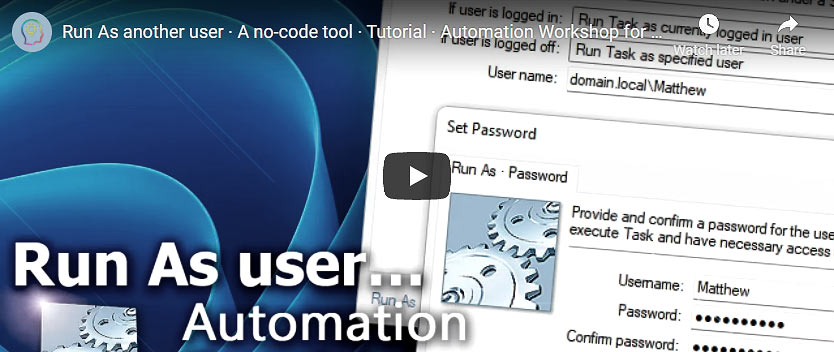
Active and inactive?
What is the difference between the Tasks that are activated and those which are not? The only difference between active and inactive Tasks lies in the status of their Triggers. A Trigger is the part of a Task which specifies when and on what conditions the Task should execute. Trigger monitors the system and continuously compares its state with a predefined set of criteria. When they match, Trigger automatically executes the Task.
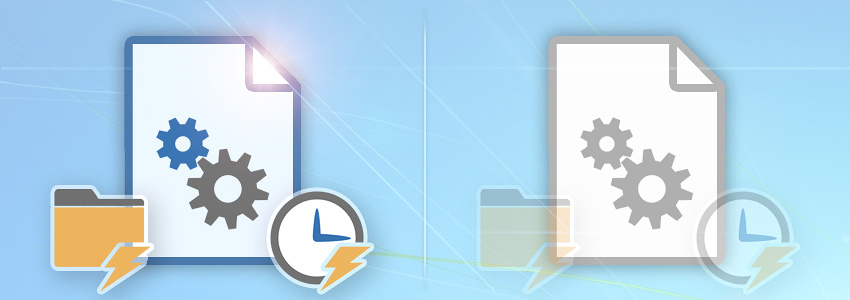
Thus, the Task can be considered active if at least one of its Triggers is enabled. Relatedly, when the Task is disabled, all its Triggers become automatically disabled, too. Conversely, if the Triggers are disabled, the Task is inactive. If a Task contains no Triggers, there is no difference between enabled and disabled Task status.
Task triggering
Generally speaking, the Triggers of enabled Tasks monitor the system ready to execute the Task. The Triggers of disabled Tasks do not monitor anything and will not execute the Task. It does not mean though that disabled Tasks cannot be executed. Even if a Task contains no Triggers or is disabled, it can still be executed both manually and by using Start Task Action which can execute both enabled and disabled Tasks as specified.
The execution of a Task can happen both automatically and manually. While manual Task execution presupposes user to run a Task from Automation Workshop Manager, automatic Task execution is possible in three distinct ways:
- By a Trigger which belongs to the Task.
- By Start Task Action which belongs to another Task.
- By another Task upon its successful completion or failure.
Suppose the Task is executed. It is important to understand that a Task does not only consist of Triggers, but also of Actions. Actions are sets of commands that are performed when the Task is executed. In fact, the very Actions are responsible for everything done by Automation Workshop (except logging and email reporting), while Triggers only specify when to do that.
When the Task is already executed, the role of the Trigger is over. However, it is worth noting that Triggers can be functionally connected with Actions by using Variable Wizard.
Example
For example, File & Folder Watcher monitors specified folder for incoming Word document .docx files and, when a new file arrives, remembers its name and executes a Task which starts to sequentially perform the specified Actions. Send Email Action then (by using Variable Wizard) can ask the File & Folder Watcher for the name of recently monitored file and add the file as attachment when sending email · See an example—Monitor a folder & send an email.
On other occasions there is no need to link Triggers with Actions. For example, running predefined file copying operations at specified time (by using Task Scheduler Trigger) where the date and time of execution is not in any way related to the file copying operations performed by Copy File Action.
Other than that, when the Task is executed (triggered by Trigger, started by Action or launched manually—from command line or Desktop shortcut) it does not matter anymore whether it is enabled or disabled. From this point forward, the Task just runs. In other words, the Task State is only relevant to the Task execution conditions. The state of an already running Task is irrelevant.
Task start-up
When executed, a Task verifies Run As and Schedule settings, i.e., checks whether and which user is logged on, what credentials apply to the current situation.
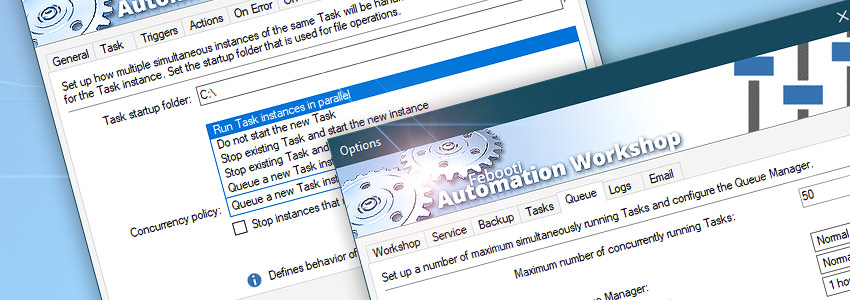
After verification of user account credentials, the Task also checks whether another instance of the same Task is not already running and, if it does, acts as specified in Settings tab of Task Properties. Namely, if an instance of already running Task is being executed, Automation Workshop can be instructed to:
- Run task in parallel.
- Do not start the new task.
- Stop existing task and start the new instance.
- Stop existing task and do not start the new instance.
- Queue a new task instance until the existing task finishes.
Likewise, upon execution, the Task also checks whether the Simultaneous Task Limit, specified in Queue Manager options is not exceeded.
Task execution…
When all above-mentioned conditions are met, the Task finally really starts to do its operations by sequentially performing the specified Actions.
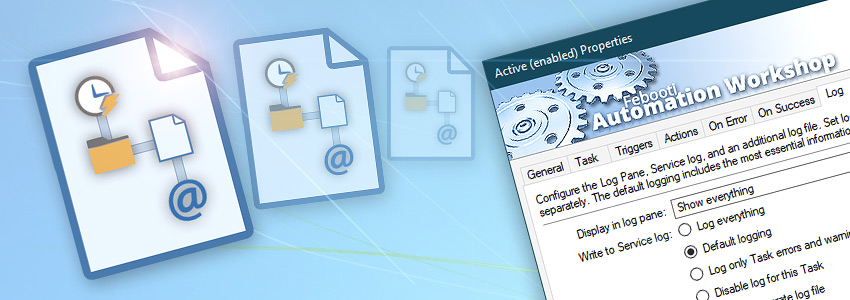
Note that each Action can be individually enabled or disabled. Enabled Actions perform their operations and disabled ones just do nothing due to being skipped.
Logging
Depending on chosen log level of the Task, each Action writes more or less information on its operations into the log file which can be easily reviewed later. There are four log levels:
- Log everything · writes all possible information into the log file.
- Default logging · writes the most relevant information into the log file.
- Log only Task errors and warnings · logs data only in case of possible or actual errors.
- Disable log for this Task · does not log anything at all.
Besides logging data in the main log file, each Task can be configured to maintain an individual log file, thus providing the user with options to individually track the operations of most important or critical Tasks · Log Manager explained
Task finishing
When all Task Actions are completed, the Task itself finishes. If no Action has experienced an error, the Task execution is considered successful. Otherwise, the Task completion status is set to failed.
As an advanced solution which requires minimum user interference, Febooti Automation Workshop explicitly distinguishes successful completion from failed completion. The further operations in case of any of the possible outcomes are specified separately.
Both in case of successful completion and failure of the Task, Automation Workshop can send an email report, run another Task, write to Windows System Event log or disable the Task.
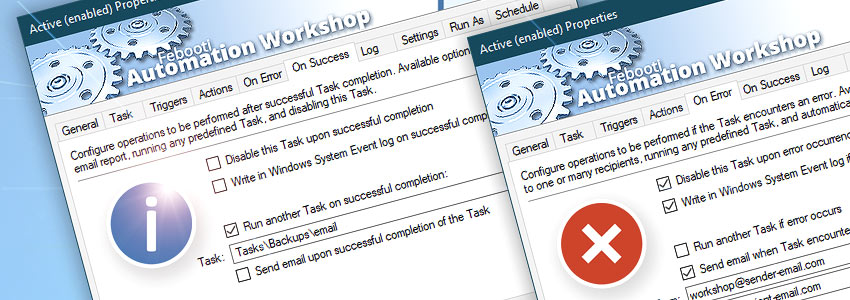
When the Task is completed, its statistics are updated. Task statistics contains information on the number of times the Task has been executed, its longest, shortest and average execution times as well as some other information.
After each completion of the Task, average run time is re-calculated. If the Task has performed much faster or slower than usual, the respective run time is updated.
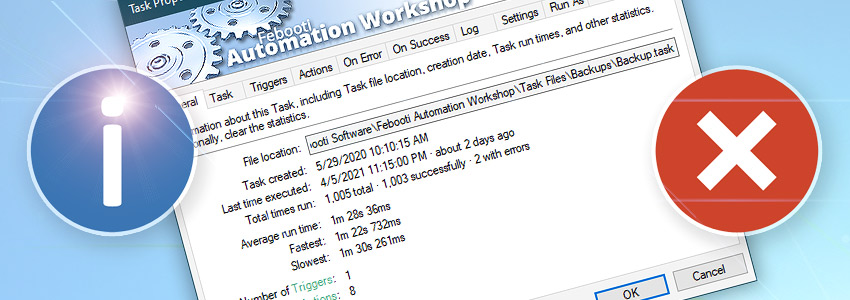
Task statistics provide a good means to overview Task execution and can help to track down some actual or possible problems (e.g., seeing that successful completion and failure ratio is higher than expected or some run times happen to be unusually slow or fast).
While requiring some acquaintance with the program, statistics can still provide the user with useful hints on Task operations.
Summary
A Task can be in one of two possible states, namely, either enabled or disabled.
Enabled task…
- Is loaded with user credentials specified in Run As tab of Task Properties.
- Triggers are enabled and they monitor the system to execute the Task when criteria are met.
- When executed, the Task verifies Run As settings and user credentials once more.
- Task Actions are sequentially performed.
- User specified log level of data on Action operations is logged into the log file.
- When Actions are completed, Task statistics is saved.
- Depending on whether there have been errors during Task execution, Automation Workshop performs operations specified either in On Error or On Success tab of Task Properties.
Disabled task…
- The Triggers are not enabled and thus do not execute the Task.
- Disabled Task can be run either manually by user or automatically by Start Task Action.
- When a Task is already executed, there is no difference between enabled and disabled Task.
More tools
- Getting started · Automation Workshop basic concepts explained.
- Streamline processes by connecting Triggers and Actions using Variable Wizard.
- Workshop Manager · easy access to all Automation Workshop features.
- Queue Manager · provides an overview of all currently running and pending Tasks.
- Log Manager · complete information on Task execution, successful finishes and failures.
Ask for more…
If you have any questions, please do not hesitate to contact our support team.